Turn on dark mode for your website
Let your site follow each visitor's light or dark setting — with or without a toggle in the header — using a dark palette and logo that stay readable.
Open Dark mode
Go to Themes → Customize and choose Dark mode under Theme settings.
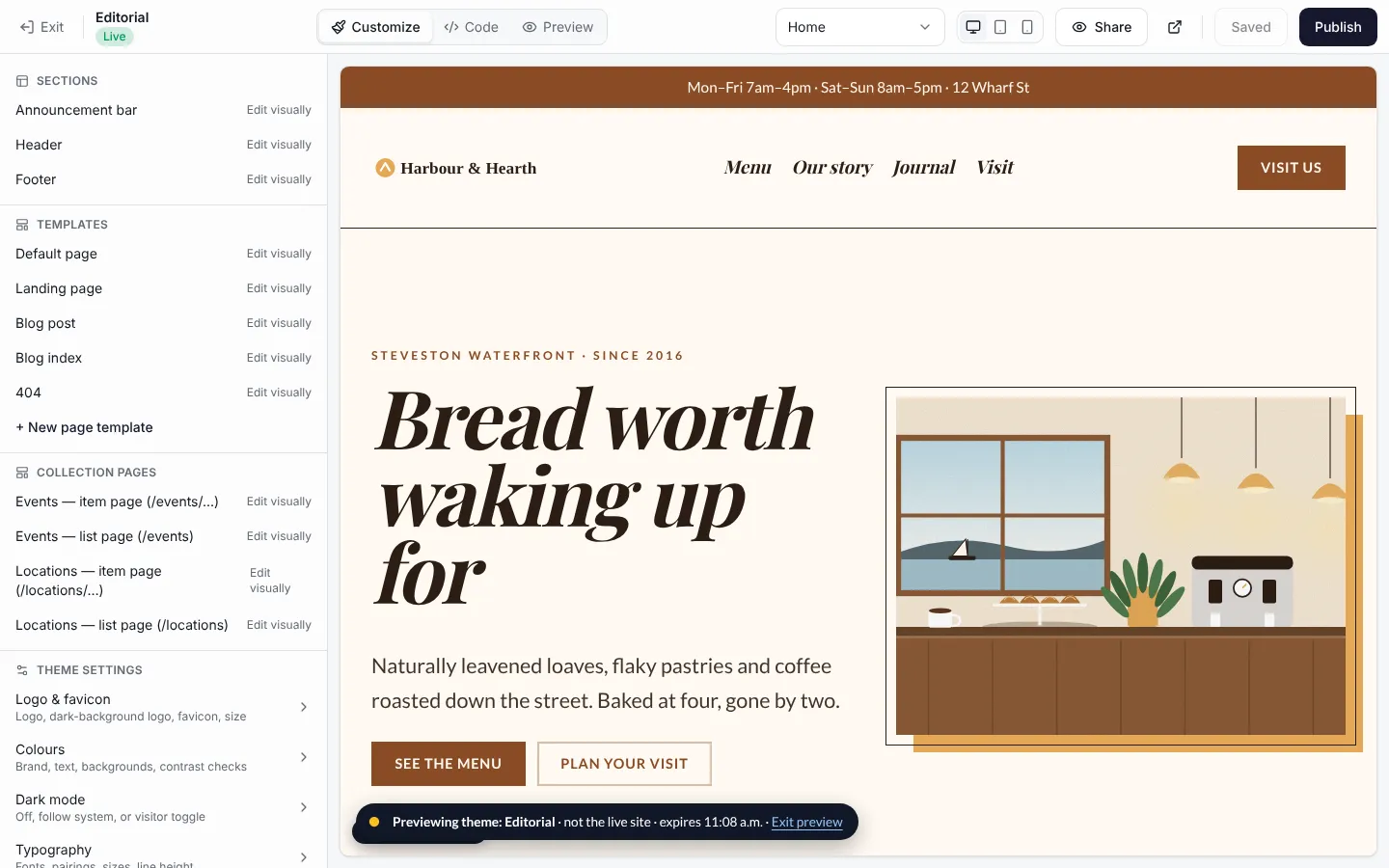
Choose how it works
- Off (light only) — always light.
- Follow visitor's system — light or dark depending on their device setting.
- System + visitor toggle — follows the device, and lets visitors switch. Turn on the dark-mode toggle in your header so the switch shows.
Check the dark colours
Once dark mode is on, the same screen shows the Dark mode colours to edit. Each text colour is checked for readable contrast in dark mode too. Upload a Logo on dark backgrounds in Logo & favicon so your logo shows on dark backgrounds.
Save and publish
Click Save, then Publish.
Common questions
Will the page flash white before going dark?
No. The right colours are chosen before the page is drawn.
Does my logo work on a dark background?
Upload a light version of your logo in Logo & favicon and it's used in dark mode and on dark sections.
Something out of date or unclear? Search other guides or tell us from your dashboard.