Choose a theme and try it on your real site
Browse 22 themes, add one as a draft, preview it with your own pages and content, then publish it in one click — and roll back if you change your mind.
A theme is your site's look: colours, fonts, corners, buttons, header, footer and page layouts. Your content stays the same whichever theme you use, so you can try as many as you like.
Open Themes
In the menu, open Website and click Themes. At the top is your live theme; below it, the Theme library lists the themes you've added but not published.
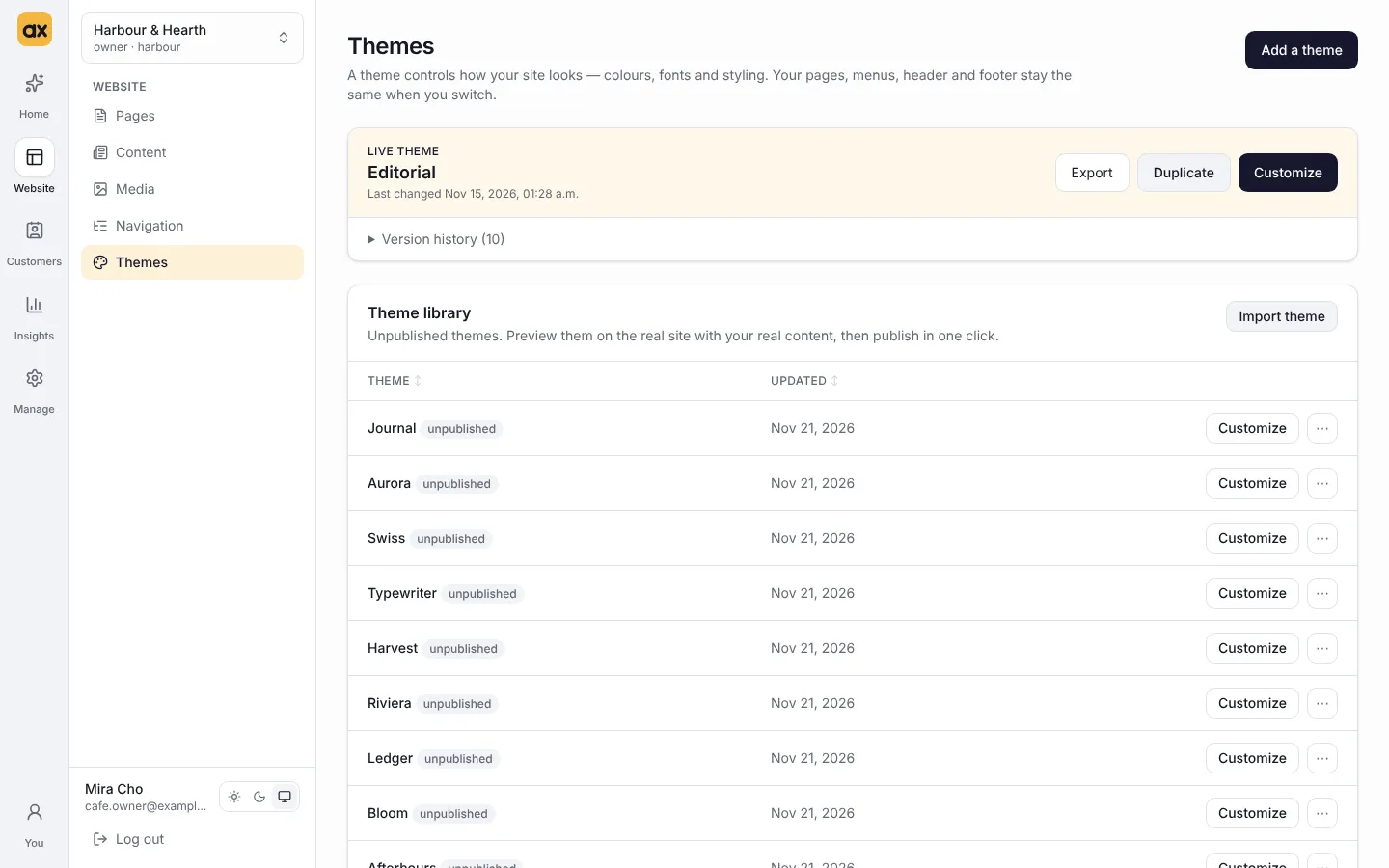
Add a theme
Click Add a theme (top right). The library opens with 22 looks, each with its colours, fonts and who it suits. Click Add on one.
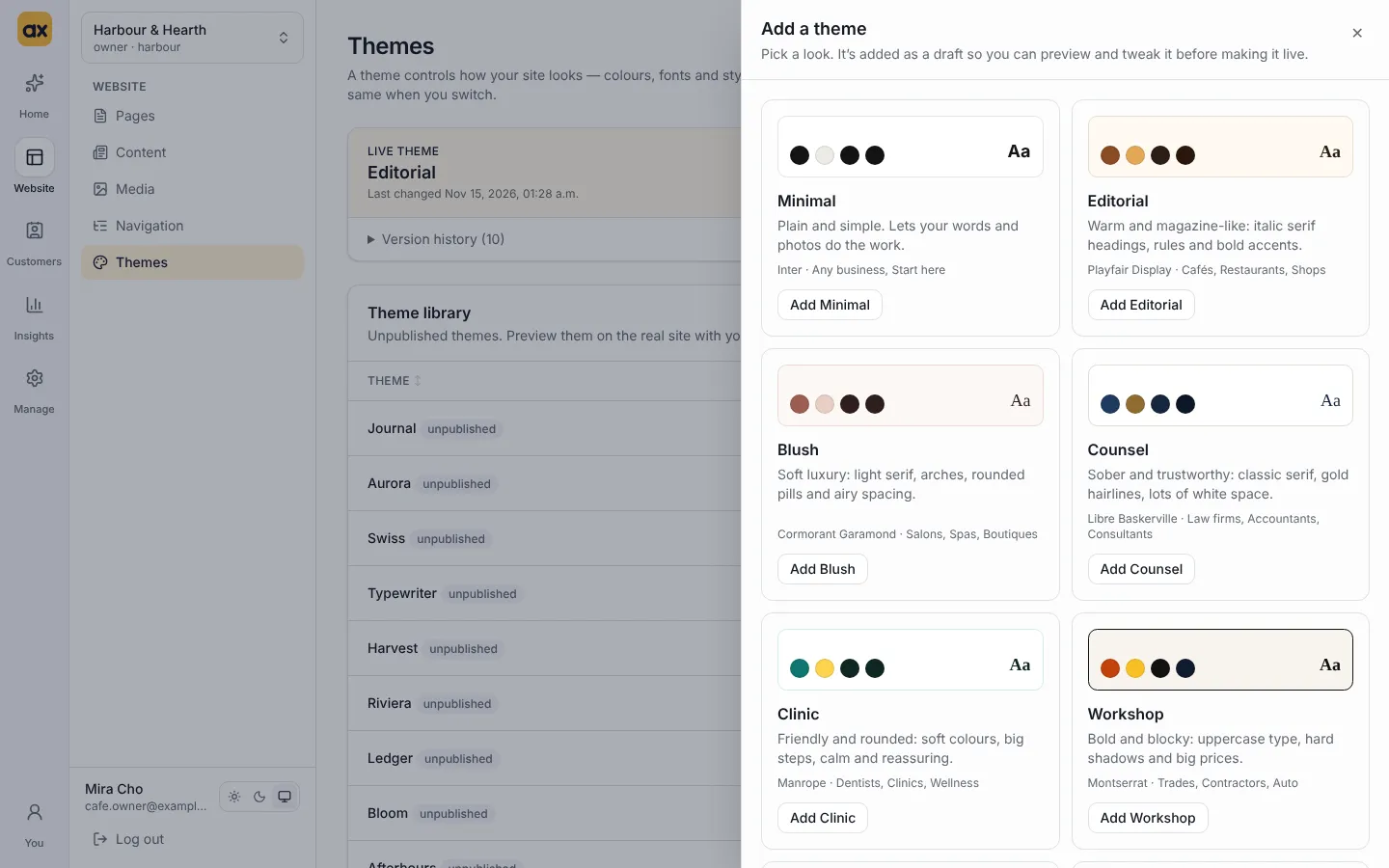
It's added as an unpublished theme that keeps your logo, favicon, header, footer and pages — nothing changes for visitors.
Preview it on your site
Click Customize on the new theme. The theme workspace opens with your real site in the new look. Use the page picker and the device buttons at the top to check different pages on desktop, tablet and phone.
To get a second opinion, click Share — you get a preview link anyone can open for 90 days.
Adjust it
In Customize, change colours, fonts, spacing, the header and footer, and motion. Changes show in the preview straight away and are kept when you click Save. See Use your brand colours and fonts.
Publish
Click Publish. Your site switches to the new theme in one step, and the old one moves to the library.
Roll back
On Themes, open Version history under the live theme to go back to an earlier version, or click Customize on your old theme in the library and publish it again.
Common questions
Will changing theme lose my pages?
No. A theme is only the look — colours, fonts, header, footer and layouts. Your pages, posts, photos and menus stay exactly as they are.
Can I keep my logo when I switch?
Yes. A theme added from the library keeps your site's logo, favicon, header, footer and pages.
Can I go back to my old theme?
Yes. Your previous theme stays in your theme list, and the live theme's version history lets you roll back.
Something out of date or unclear? Search other guides or tell us from your dashboard.