Add custom CSS to your theme or a page
Fine-tune your design with your own CSS for the whole theme or a single page, using your theme's colour and spacing variables so it stays on-brand.
Most design changes don't need code — the theme settings cover colours, fonts, spacing and corners. When you need something extra, add CSS.
For the whole site
Go to Themes → Customize, switch to the Code tab at the top and open assets/custom.css. What you write applies to every page using this theme, and the preview updates as you type. Save and publish the theme to put it live.
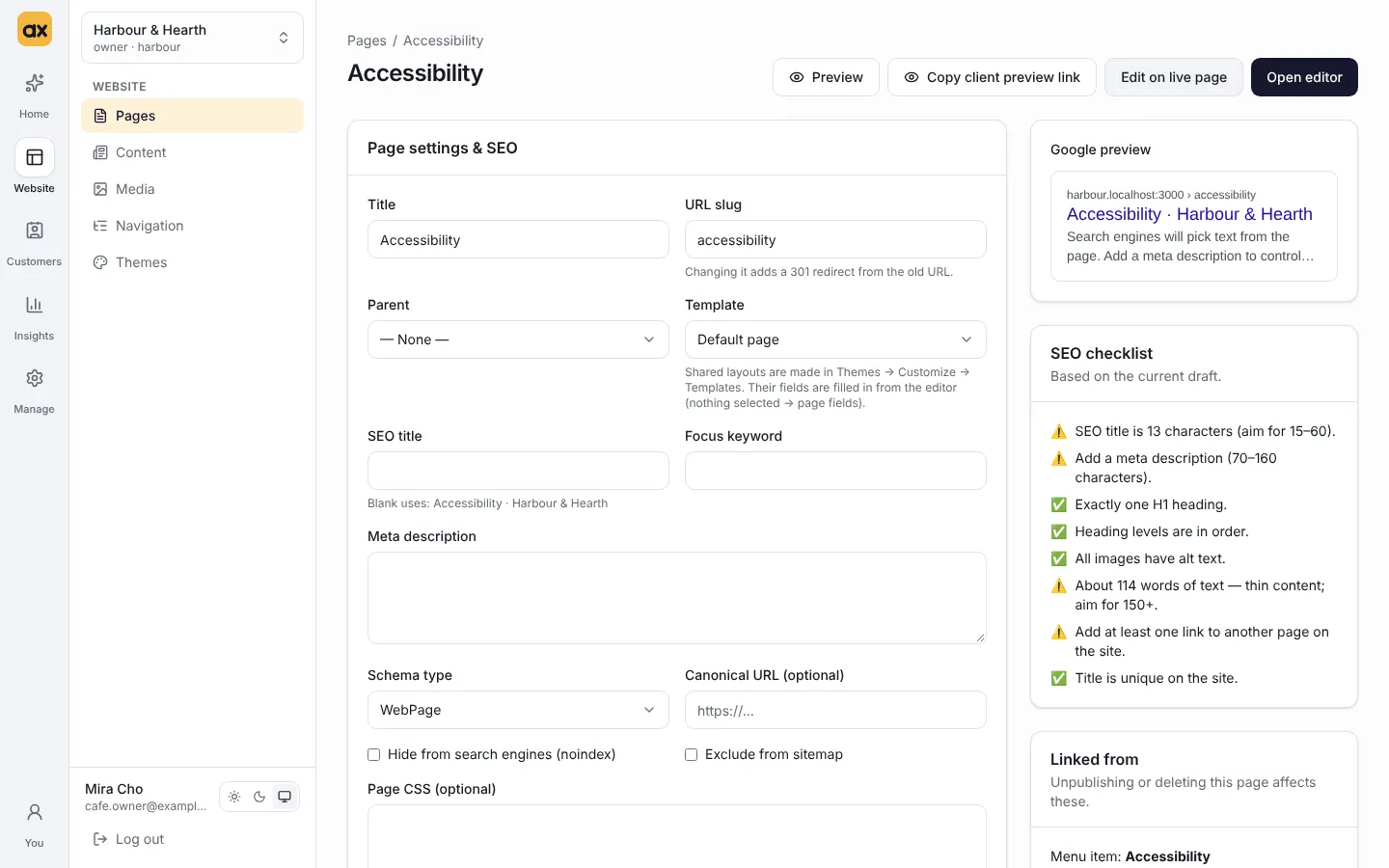
For one page
Open the page from Pages and find Page CSS (optional) under its SEO settings. Click Save settings.
Use the theme's variables
Your theme's settings are available as CSS variables, so your CSS follows your brand even if you change colours later:
.my-callout {
  background: var(--c-primary);
  padding: var(--space-gap);
  border-radius: var(--radius);
}
Others include var(--space-section) (space between sections), var(--gutter) (page side margin) and var(--h1) to var(--h4) (heading sizes).
Common questions
Will my CSS survive a theme change?
Theme CSS belongs to that theme, so it moves with it. Page CSS belongs to the page and stays whatever the theme.
Can I edit the theme's code directly?
Yes — the theme workspace's Code tab shows every template and section, with a timeline of changes you can go back through.
Something out of date or unclear? Search other guides or tell us from your dashboard.