Give several pages the same layout
Make a page template with its own fields, use it for many similar pages — services, locations, programs — and change the design of all of them at once.
On this page
When you have many pages that should look alike — one per service, say — a shared layout saves you redesigning each one.
Create a page template
Go to Themes, click Customize on your live theme, and under Templates click + New page template. Name it, for example Service page.
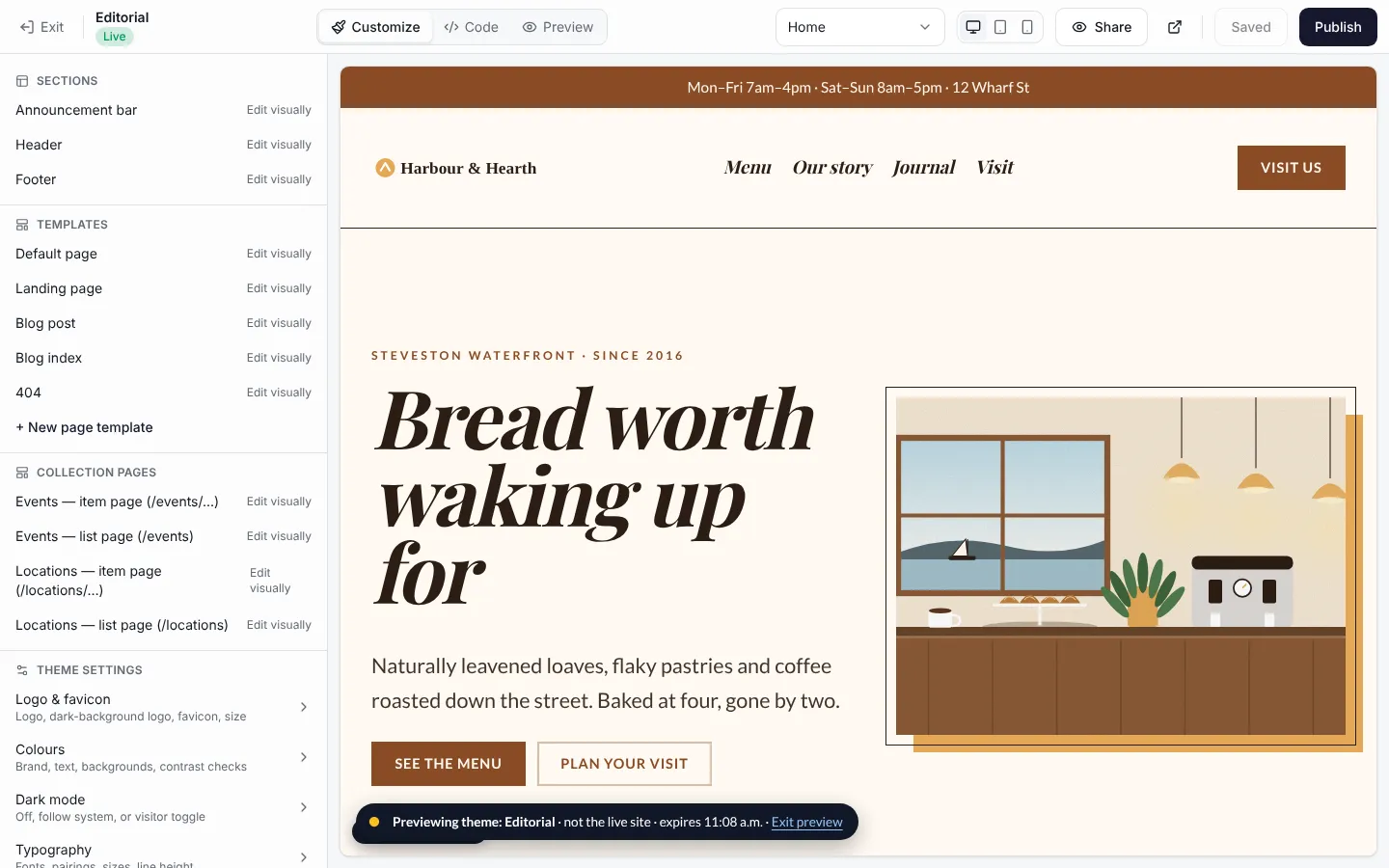
It starts as a copy of the default page template. Design it like any page, and keep a Page content block where each page's own blocks will go.
Add page fields (optional)
With nothing selected, add page fields — a price, a duration, a booking link. Each has a label, a type (text, long text, web address or choice), a default and a hint. Use them in the template's headings, text and buttons as {{page.price}}.
Use the template
- For one page: choose it under Template when creating the page, in its settings, or in the editor's top bar.
- For many: on Pages, click Use a shared layout for several pages…, tick the pages (or a parent and everything under it) and pick the template. You can fill in field values from a CSV file with a
pathcolumn and one column per field.
In the editor, each page shows the template's fields as "Service page — page fields" when nothing is selected.
Change all pages at once
Edit the template in the theme workspace and publish the theme. Every page that uses it changes.
Common questions
Should I use a page template or a collection?
Use a collection when the pages are really a list of similar things with the same facts (team members, jobs, locations). Use a shared page template when the pages are freer but should share a design.
What happens if I delete a template?
Its pages go back to the default page template. Their content and field values are kept.
Something out of date or unclear? Search other guides or tell us from your dashboard.