Create a new page
Add a page to your website — give it a title and address, choose where it sits and which layout it uses, and open it in the editor ready to fill in.
On this page
Open Pages and click New page
In the menu, open Website and click Pages, then New page at the top right. A panel slides in.
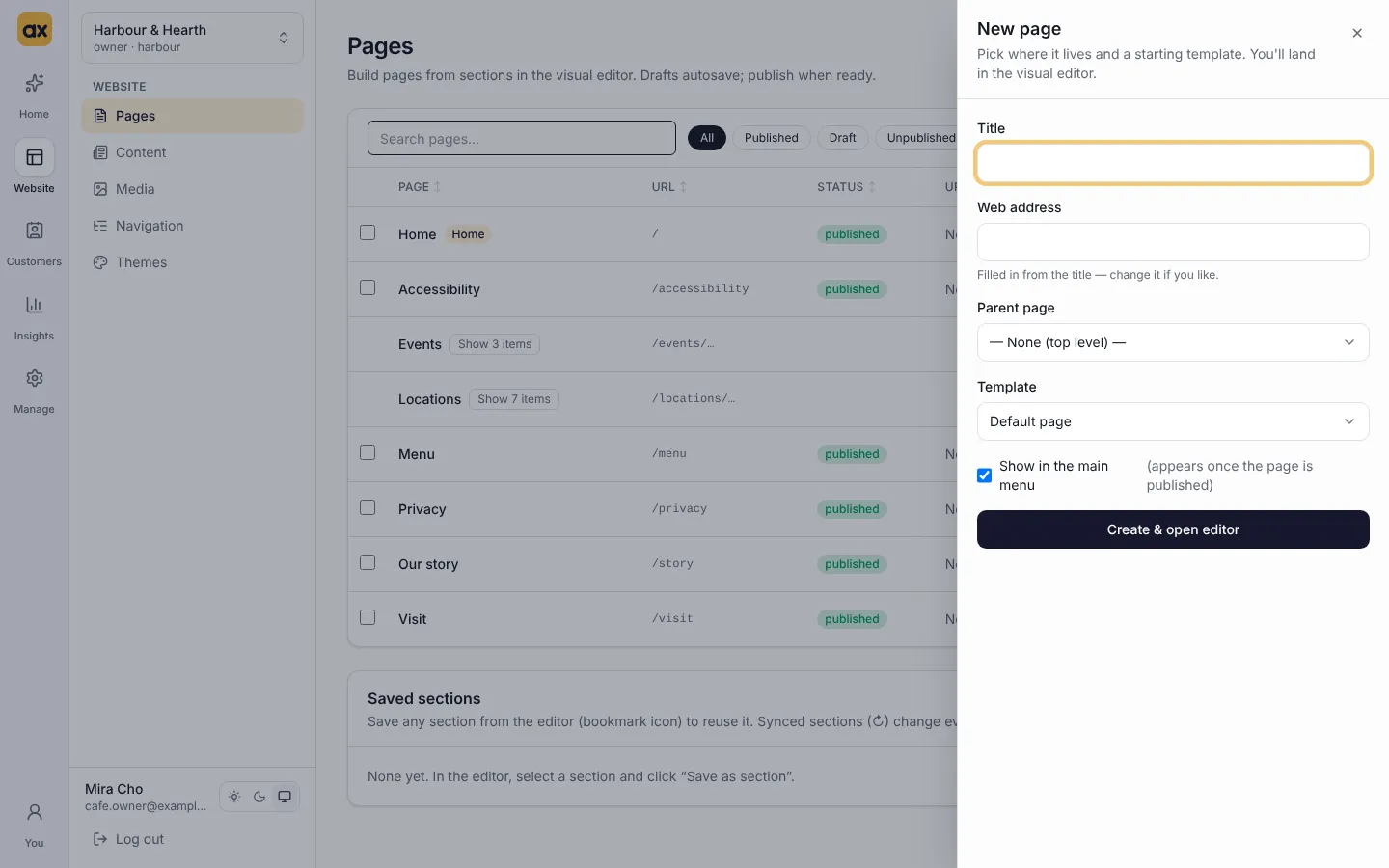
Fill in the details
- Title — the page's name, like Catering or Meet the team. It's used in menus and browser tabs.
- Web address — filled in from the title; change it if you like. Keep it short and use the words people search for, such as
/wedding-cakes. - Parent page — leave as None (top level), or choose a page to put this one under. A page under Services gets an address like
/services/catering. - Template — the layout it uses. Default page suits almost everything; your theme may offer others.
- Show in the main menu — tick it to add the page to your header menu when it's published.
Create and open the editor
Click Create & open editor. The editor opens with a page banner ready to edit. Change the heading, then drag in more blocks from the left. See Edit a page with blocks.
Find a page later
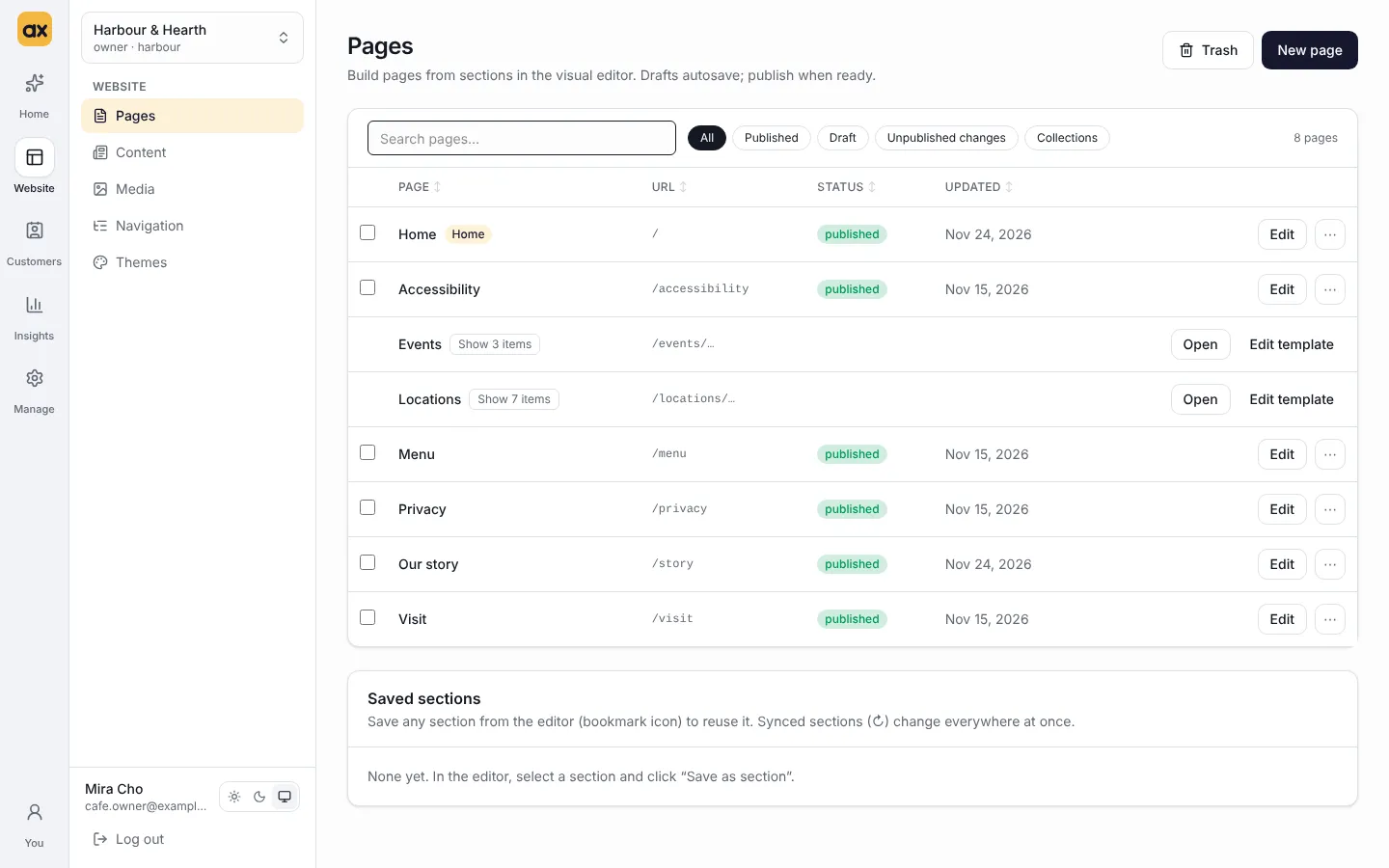
The Pages list filters as you type — by title or address — and has chips for Published, Draft, Unpublished changes and Collections, each with a count.
Common questions
How many pages can I have?
It depends on your plan — Free includes 10 pages, Pro 20 and Max 100. Manage → Plan & billing shows how many you've used.
Is a new page visible straight away?
No. A new page is a draft until you click Publish. Only people signed in to your site can see drafts.
Can I change the address later?
Yes, in the page's settings. Changing it adds a redirect from the old address automatically.
Something out of date or unclear? Search other guides or tell us from your dashboard.