Edit a page with blocks
Build and change pages in the visual editor — add blocks, edit their words and pictures, reorder or remove them, and see your real site styling as you work.
On this page
Pages are built from blocks — a banner, text, image and text, a gallery, a form, a FAQ and many more. The editor shows your page with your real theme, header and footer, so what you see is what visitors get.
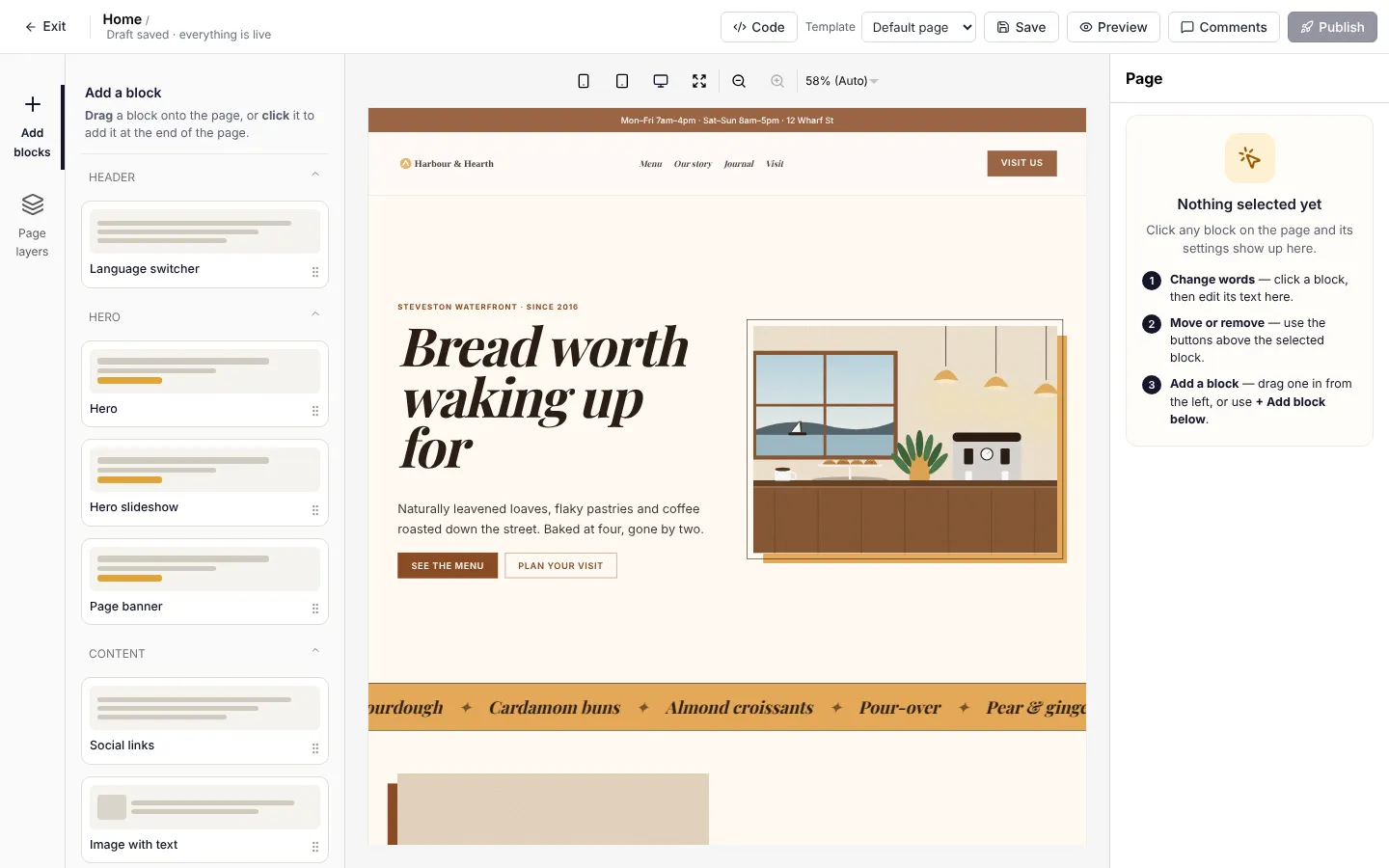
Open a page in the editor
From Pages, click Edit on a page. Or use Edit home page at the top of your site's home screen.
The screen has three parts: Add a block on the left, your page in the middle and the selected block's settings on the right.
Change a block
Click any block on the page. Its settings open on the right — headings, text, pictures, buttons and options such as background and width. Changes show on the page straight away.
When nothing is selected, the right side shows a three-step reminder: change words, move or remove, add a block.
Add a block
Drag a block from the left onto the page, or click it to add it below the selected block (or at the end). Each block in the list has a small sketch of what it looks like.
On the page itself, hover over a block and click + Add block below.
Move, copy or remove a block
The selected block has a toolbar with Move up, Move down, Duplicate, Save for reuse and Delete.
Preview and publish
- Preview opens the page as visitors will see it.
- The top bar tells you where things stand: Draft saved · not published yet, not live yet — Publish to update the site, or everything is live.
- Click Publish to put your changes live. It's greyed out when there's nothing new to publish.
Useful blocks to know
| Block | Good for |
|---|---|
| Page banner / Hero | The big opening of a page: heading, text, picture and buttons. |
| Image with text | A photo beside a paragraph — services, your story. |
| FAQ / Accordion | Questions and answers. Opening: One at a time closes the others when one opens. |
| Form | Contact or enquiry forms; replies go to your Inbox. |
| Collection list | Your team, events, jobs or locations, from Content. |
| Booking, form or post | Calendly, OpenTable, Square and other services you already use. |
| Opening hours | Your hours from Settings, with Open now. |
Common questions
Do I need to save?
Your draft saves itself as you work — the top bar says “Draft saved”. Visitors only see your changes after you click Publish.
What if someone else is editing the same page?
You'll see who is editing and the page opens read-only, with an option to take over. Nobody's work is silently overwritten.
Can I undo a change?
Use the undo button in the editor, or restore any earlier published version from the page's version history.
Something out of date or unclear? Search other guides or tell us from your dashboard.