Duplicate, delete and restore pages
Copy a page as a starting point, move pages you don't need to the trash, and bring them back — or delete them for good — from the Trash panel.
Duplicate a page
On Pages, open a page's ⋯ menu and choose Duplicate. You get a draft copy to edit — handy for a second service page or a new location.
Move a page to the trash
Open the page's ⋯ menu and choose Move to trash. The confirmation tells you what will happen: the page's address will show page not found, and menu links to it will stop showing.
Restore a page
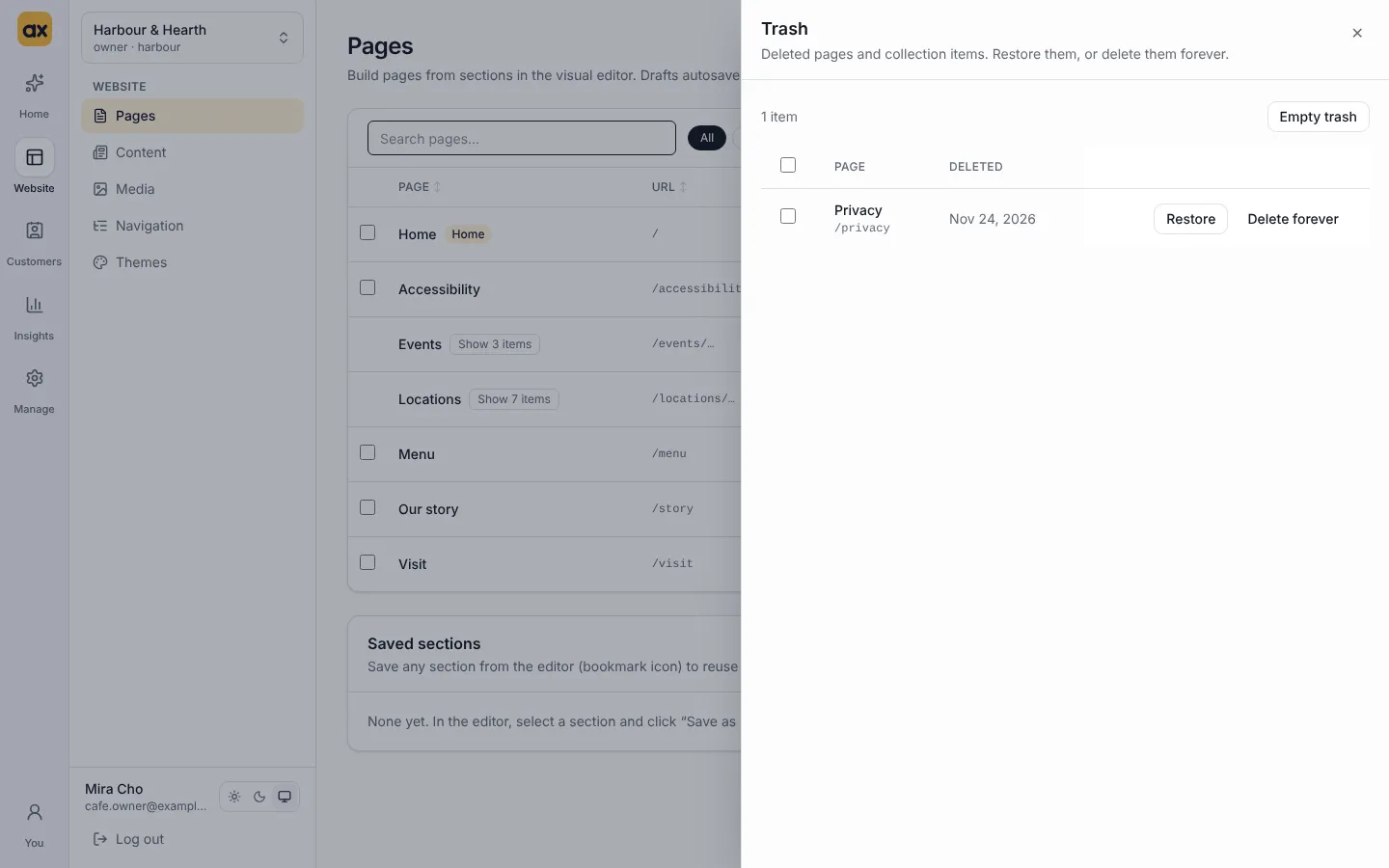
Click Trash at the top right of Pages (it shows a count). In the panel:
- Restore brings a page back, at the same address.
- Delete forever removes one for good.
- Tick several and use Delete selected, or Empty trash.
Common questions
Why can't I delete a page?
A page that has pages under it can't be deleted. Move or delete those pages first.
What happens to links to a deleted page?
Its address shows “page not found” and menu links to it stop showing. Restore the page and they come back.
Something out of date or unclear? Search other guides or tell us from your dashboard.