Create your own content type with custom fields
Design a collection from scratch — programs, products, properties or anything else — by adding fields point-and-click, then add items with their own pages.
Create the type
Go to Content, click + New collection and choose Your own type. Type a name like Programs and click Create.
Add fields
In the collection's settings, click Add field, name it and pick a type:
- short, long or formatted text,
- number, date, date & time, yes/no,
- choice (with the options you list),
- image, file (PDF, video…), link,
- another item (a reference to a different collection).
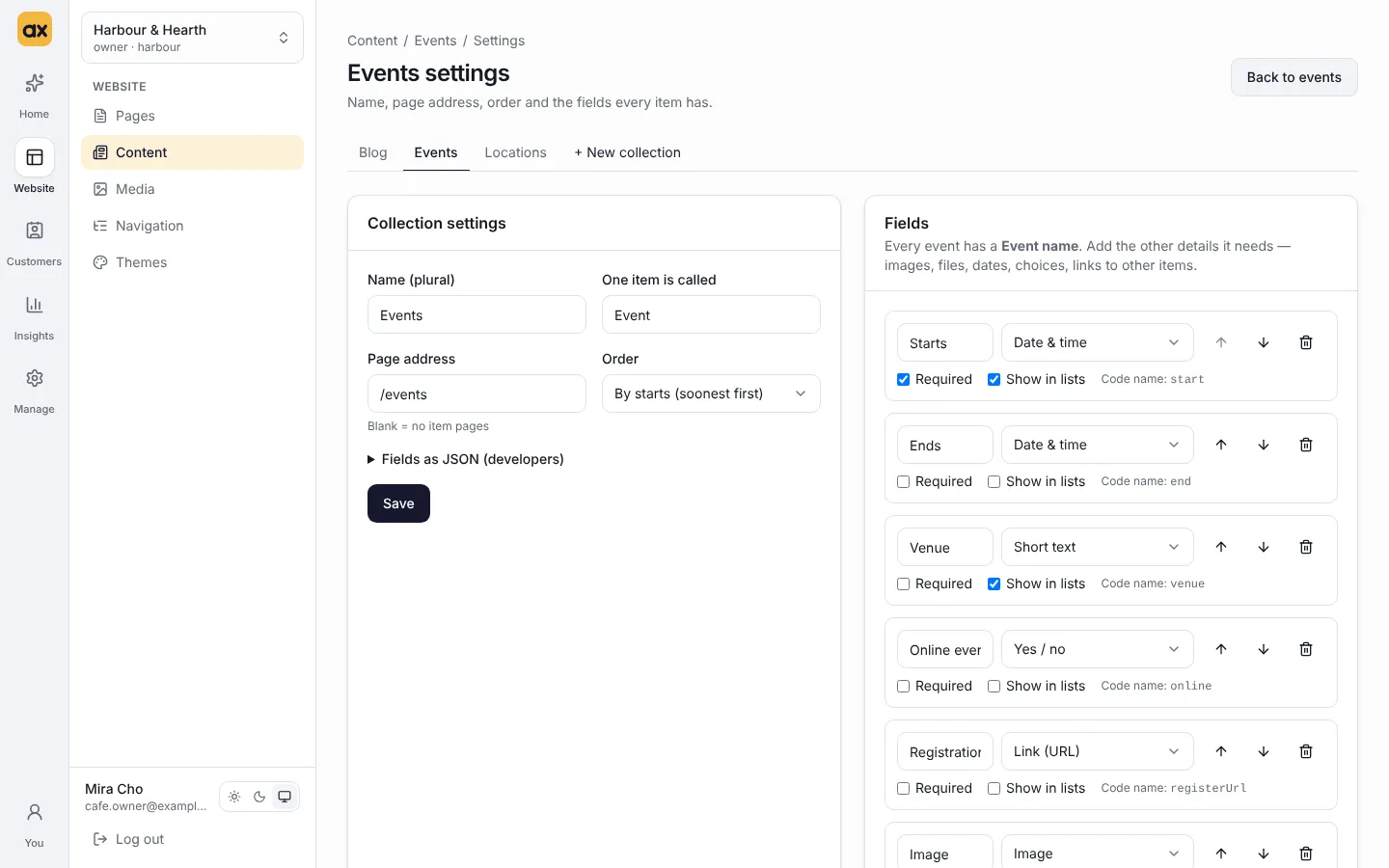
For each field tick Required if it must be filled in, and Show in lists if it should appear on cards. Reorder with the arrows and remove ones you don't need.
Set the page address
Page address decides where item pages live — /programs gives /programs/saturday-baking-club. Choose the Order items are listed in. Click Save.
Add items
Back on the collection's tab, add items and publish them. Each item gets its own page, with its images, facts and file downloads laid out by your theme. To design that page, use Edit template from an item.
Turning existing pages into a collection
Already have a group of look-alike pages, like one per region or service? Open the parent page from Pages: its settings offer Check the pages, which shows what a collection would get, and Convert turns them into one — same addresses, links updated. You can turn it back into pages from the collection's settings.
Common questions
Can I change a field's type later?
Until it has values, yes. After that the type is locked so stored content never breaks, though text kinds can still switch between short, long and formatted text.
Can one item link to another?
Yes. Use the “another item” field type to point to an item in a different collection — a program's location, say.
Something out of date or unclear? Search other guides or tell us from your dashboard.