Use your brand colours, fonts and logo
Set your logo and favicon, pick colours with built-in contrast checks, choose fonts and tune text size, spacing and corners with live sliders.
Every theme has the same settings, so your brand carries over whichever theme you choose. Open Themes, then Customize on a theme. The settings are listed under Theme settings on the left; the preview on the right updates as you go.
Logo & favicon
Upload your logo, a Logo on dark backgrounds for dark headers and footers, and a favicon (the little icon in browser tabs). A slider sets the logo's width. A new logo shows in the preview straight away.
Colours
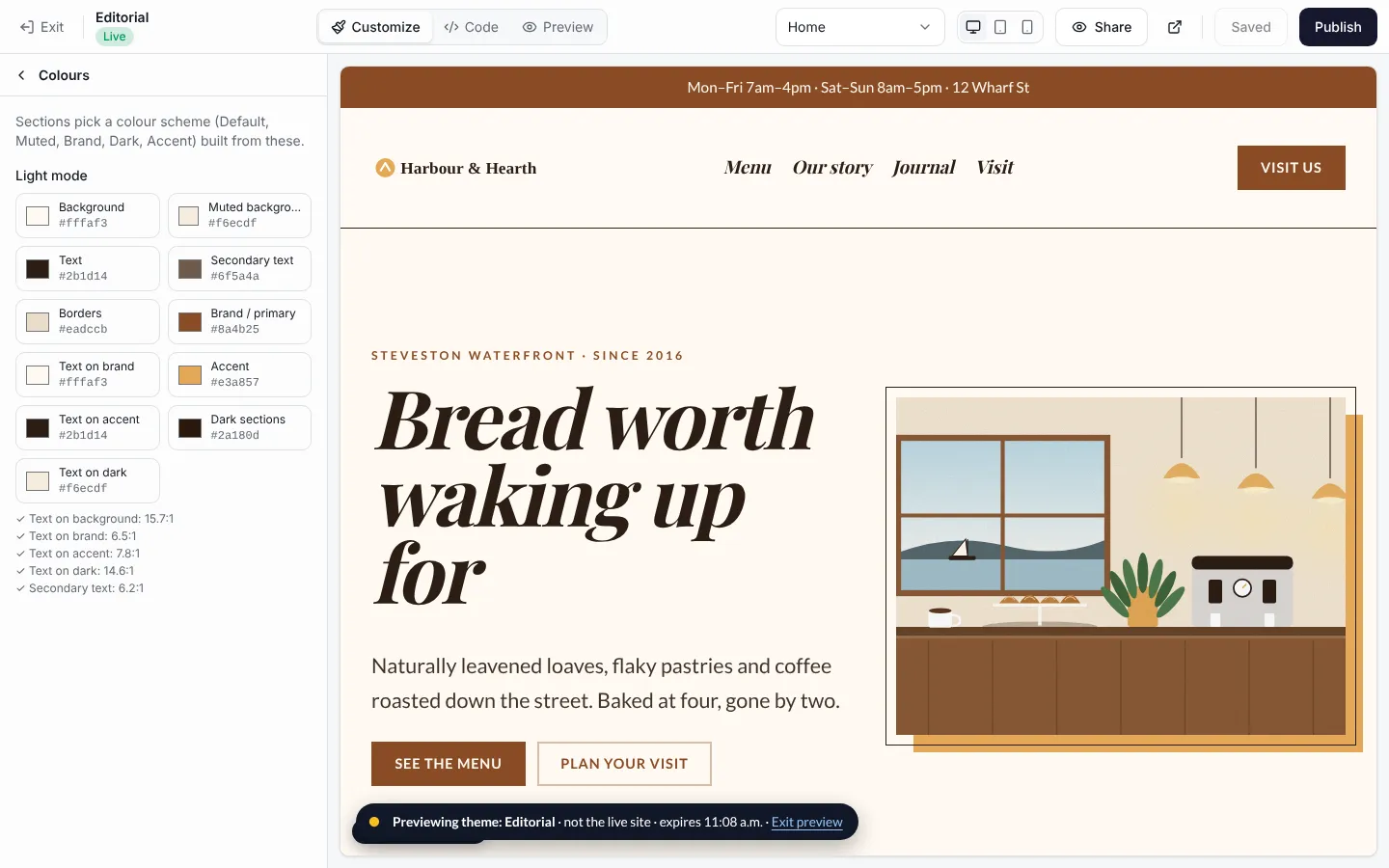
Set your background, text, brand (primary) and accent colours, plus colours for borders, dark sections and text on dark. Each text colour is checked against its background for readable contrast — a warning shows if a pair falls below the WCAG AA standard.
Sections can use a colour scheme of their own (default, muted, brand, dark or accent), so you can vary a page without leaving your palette.
Typography
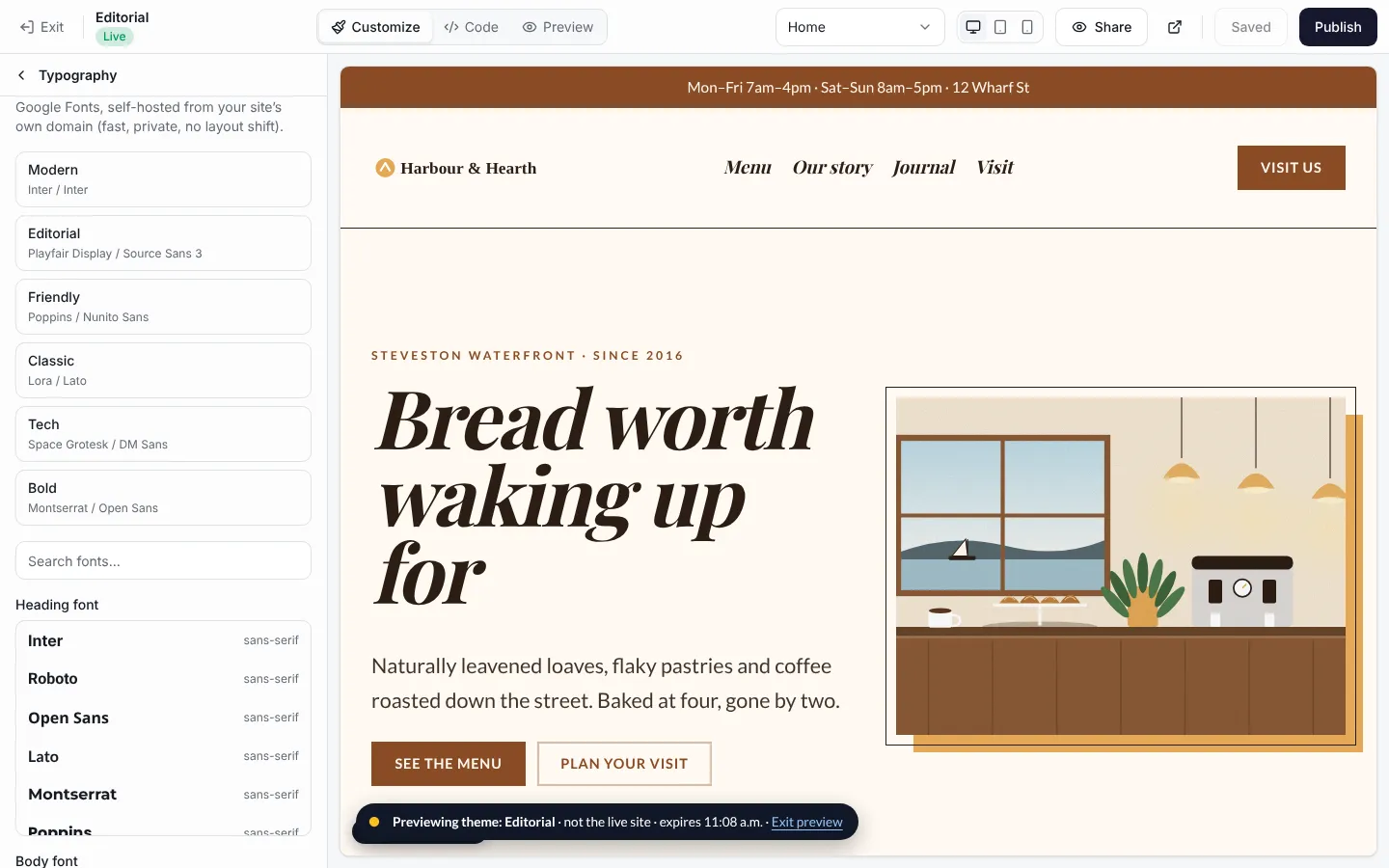
Pick a heading font and a body font, or a ready-made pairing. Fonts are served from your own site. Then fine-tune with sliders:
- Body text size (14–20px) and heading scale — the H1 size is shown as you drag.
- Heading weight, line height and letter spacing.
Spacing, layout and buttons
- Section spacing — the space above and below every section.
- Gaps between items — cards, columns, grids and footer columns.
- Page side margins and page width.
- Corner radius for everything, with its own slider for buttons, cards and panels, images and video, and form fields.
- Button style and button size.
Every slider has a box to type an exact value, and Reset to go back to the theme's default.
Save and publish
Click Save in the top bar to keep your changes, then Publish to put them live (on a draft theme).
Common questions
Why does it warn me about contrast?
Text needs enough contrast against its background to be readable, including for people with low vision. The checks follow the WCAG AA standard used by accessibility laws.
Are the fonts loaded from Google?
No. Fonts are served from your own site, which is faster and doesn't share your visitors' details with anyone.
Do my changes go live immediately?
On a draft theme, nothing changes for visitors until you publish. On the live theme, saved colours and fonts apply straight away.
Something out of date or unclear? Search other guides or tell us from your dashboard.