Connect Claude or another AI assistant to your website
Give your own AI assistant — Claude, Cursor or any MCP client — safe access to edit your pages, posts and settings, with the same permissions you have.
AgencyX works as an MCP (Model Context Protocol) server, so AI assistants that support MCP can work on your website for you — drafting pages, writing posts, uploading images, fixing SEO — and check their work with screenshots.
Create an access token
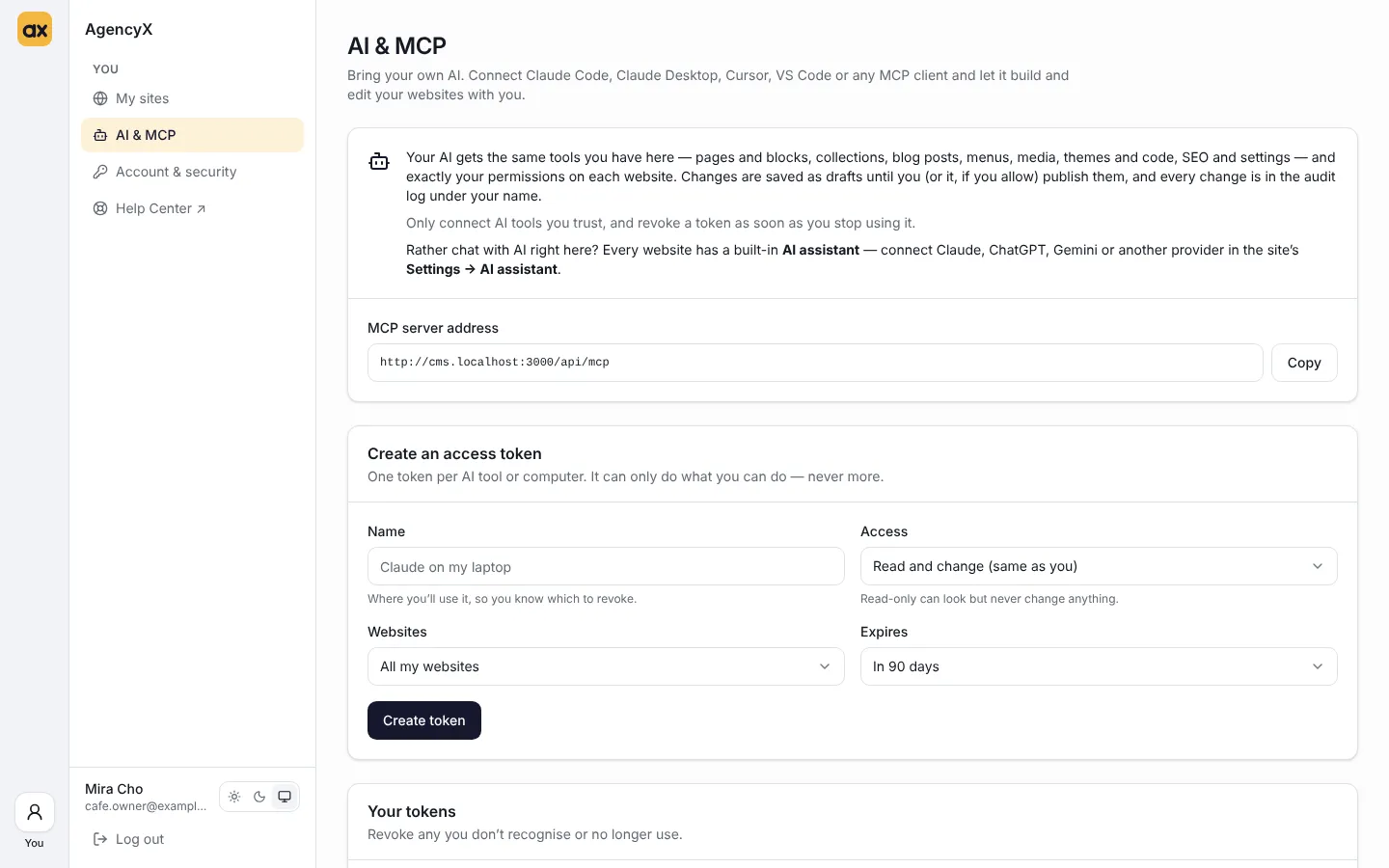
Open You at the foot of the menu rail and click AI & MCP. Under Create an access token:
- Name — like Claude on my laptop.
- Access — Read and change or Read only.
- Websites — all your websites, or one.
- Expires — in 30, 90 or 365 days, or never.
Click Create token. It's shown once — copy it now.
Add it to your AI tool
The screen shows copy-paste setup for Claude Code, Claude Desktop, Cursor / VS Code and any other MCP client, using the MCP server address at the top.
Ask for what you need
For example: "Draft a page about our catering service with a menu and a contact form, then show me a screenshot."
Stay in control
- The token can only do what you can do, on the sites you chose.
- Every change is recorded in Manage → Activity under your name.
- Revoke a token under Your tokens to stop it immediately.
Common questions
Can the AI do more than I can?
No. A token acts as you, with your role on each site. You can narrow it further — read-only, or one website only.
How do I stop it?
Revoke the token under Your tokens on the AI & MCP screen. It stops working at once.
Does it publish straight away?
Changes go to drafts like yours do, and are recorded in the activity log under your name. Authors still can't publish.
Something out of date or unclear? Search other guides or tell us from your dashboard.