Build and edit your site by chatting with AI
Ask the AI assistant for new pages, rewrites, blog posts or a new look — attach photos, your logo, PDFs or a link — and preview every change first.
On this page
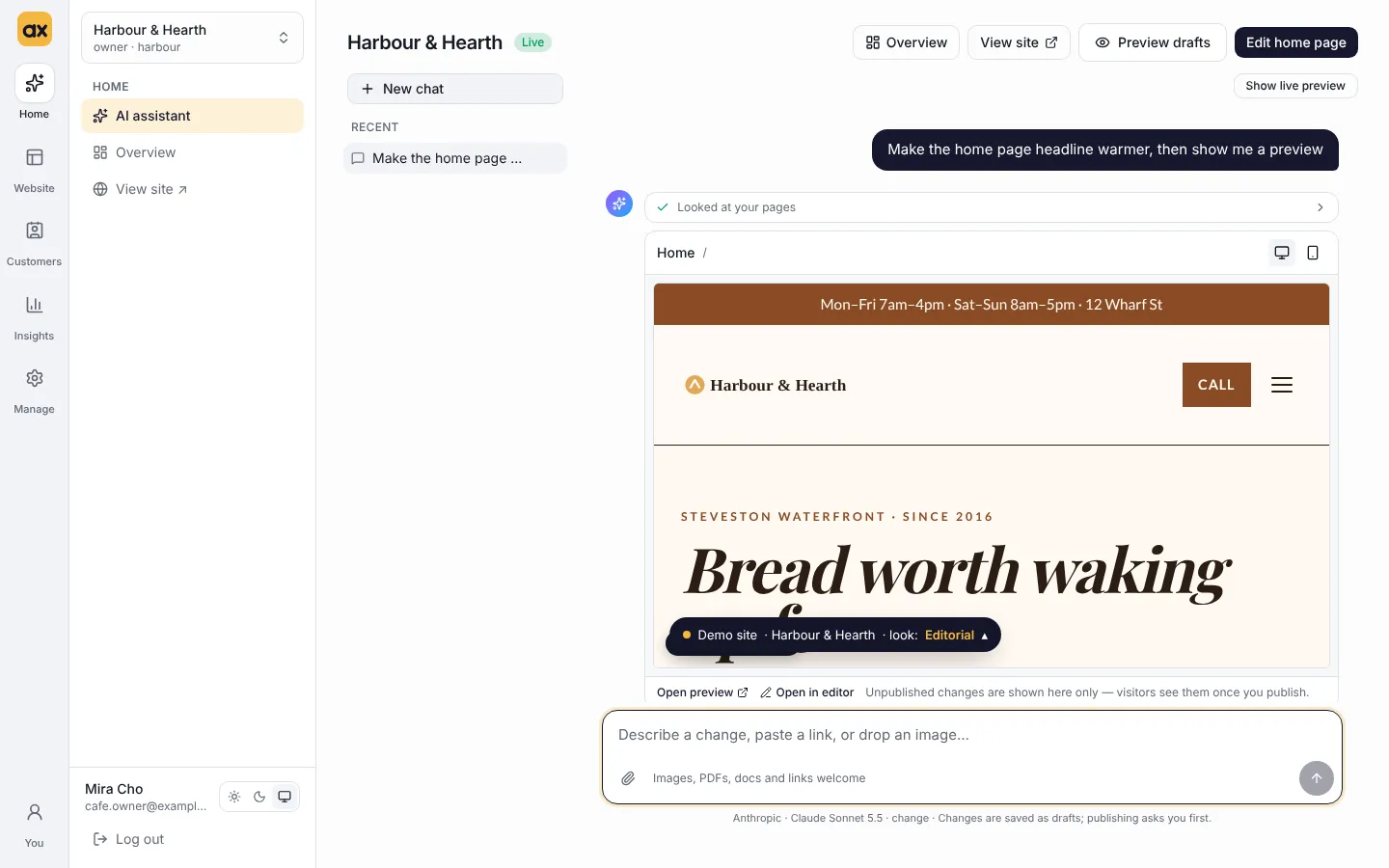
Open any website and the first thing you see is the AI assistant. Tell it what you want in plain words and it builds it — then shows you a preview before anything goes live.
Ask for anything you'd do by hand
The assistant uses the same tools as the rest of the admin, so it can:
- Create and edit pages — "Add an About page with our story, team and opening hours."
- Rewrite — "Make the home page headline shorter and friendlier."
- Write blog posts — "Write a post about our new spring menu."
- Change the look — "Use warmer colours and a serif font for headings."
- Fix SEO — "Check every page for SEO problems and fix the easy ones."
- Update menus, business details, lists and settings.
It replies with links you can click to open a page, the editor or the right settings screen.
Attach images, files and links
- Images — click the paperclip, drag them onto the message box, or paste a screenshot. Attach your logo and ask it to match your colours, or a photo to use on a page.
- Files — a PDF menu, a price list, a Word document with your About text. Text files are read in full.
- Links — paste a link to your old website, a page you like or an article. The assistant reads it and can bring images from it into your media library.
Everything you attach (except plain text) is saved to your Media library, so it can go straight onto a page.
Preview before it goes live
After changing a page, the assistant shows a live preview of the draft right in the chat. Switch between desktop and phone width, open the preview in a new tab, or click Open in editor to fine-tune it yourself.
Approve anything visitors would notice
The assistant saves its work as drafts. When it wants to publish, delete, change your site's status or domain, or do anything hard to undo, it shows a card with Allow and Don't allow. Nothing happens until you choose.
Your chats
- New chat starts a fresh conversation. The assistant remembers everything within a chat, so keep related changes together.
- Your chats are listed on the left (tap Chats on a phone). Click one to pick up where you left off.
- Use ⋯ on a chat to rename, archive or delete it. Archived chats stay readable under Archived and can be brought back.
- Deleting a chat doesn't undo the changes it made — use page history for that. See Publish, unpublish and roll back.
Where's the dashboard?
Your site's visitor numbers, launch checklist and pages waiting for review are under Home → Overview in the menu.
Common questions
Will the assistant publish changes without asking?
No. Everything it changes is saved as a draft. Publishing, deleting and other changes visitors would notice show an Allow / Don't allow card and wait for you.
Can it do things my role can't?
No. It works with exactly your permissions. If you're an author, it can draft but not publish, just like you.
Who can see my chats?
Only you. Each person has their own chats on each website. Changes the assistant makes are in the site's activity log under your name.
What files can I attach?
Photos and images, PDFs, Word, Excel and PowerPoint files, and text files such as .txt, .csv, .md or .json, up to 20 MB each. Images and files go into your media library so they can be used on pages.
Something out of date or unclear? Search other guides or tell us from your dashboard.