Launch your website with the go-live checklist
Follow the Get your site live checklist — logo, home page, sample text, business details and domain — then switch your site from Coming soon to Live.
On this page
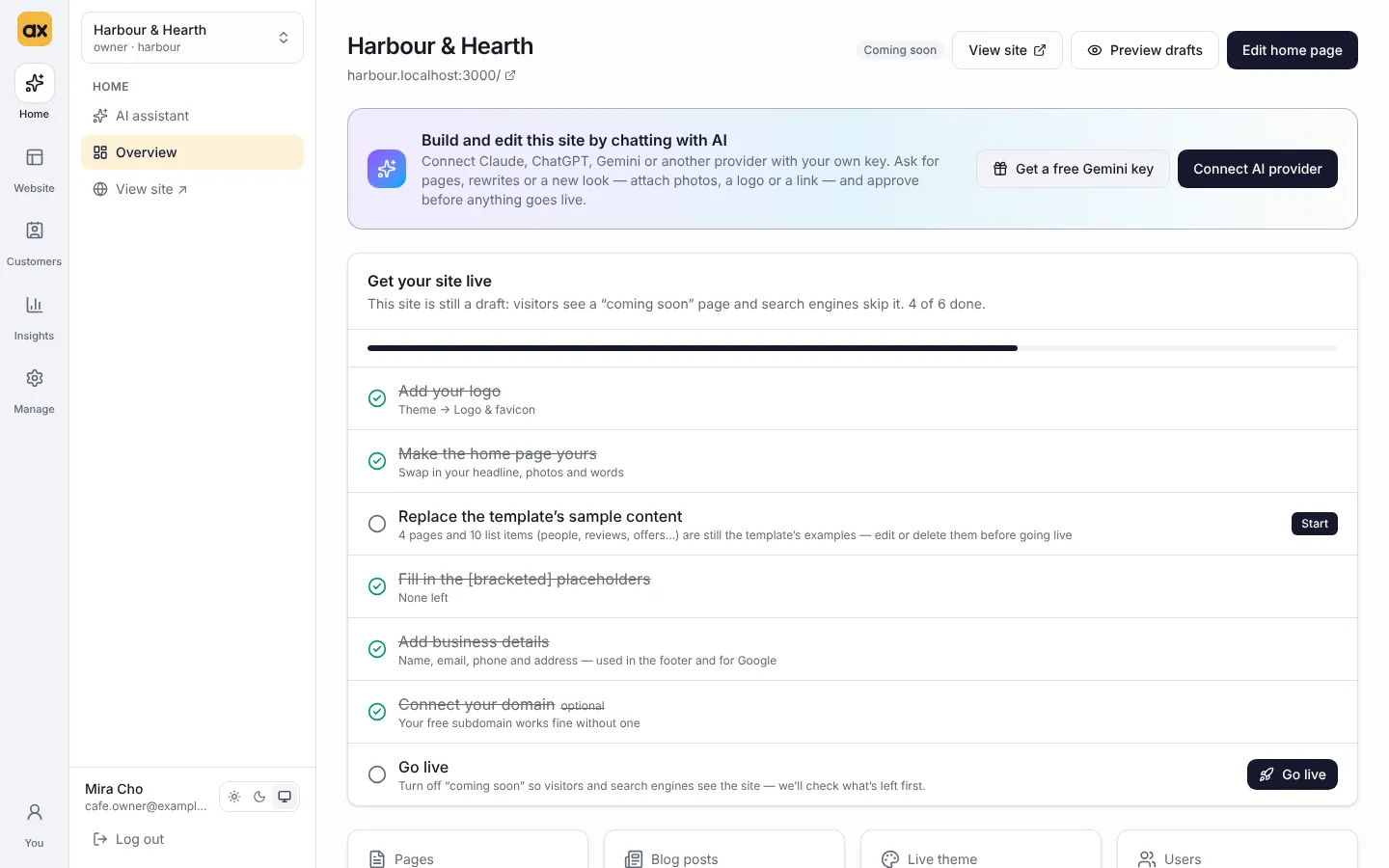
While your site is a draft, its Overview (under Home in the menu) shows a Get your site live checklist — the AI assistant's home screen links to it with a Not live yet bar. It's worked out from what your site already has, so finished steps are ticked off on their own and the next step has a Start button.
Add your logo
Upload your logo under Themes → Customize → Logo & favicon. Add a light version too if your theme has a dark header or footer. See Use your brand colours and fonts.
Make the home page yours
Click Edit home page and change the headline, photos and buttons. Click any block on the page to edit it. See Edit a page with blocks.
Replace the sample content
Starter pages come with sample text written for your kind of business. The checklist counts the pages that still have it and lists any [bracketed] placeholders, such as [your phone number], that you still need to fill in.
Add business details
Fill in Manage → Business profile: your contact details, address and opening hours. They show in your footer and contact page and tell Google how to list you. See Add your business details.
Connect your domain (optional)
Use your own address, like yourbusiness.ca. The step guides you through the records to add at your domain provider. See Connect your own domain.
Go live
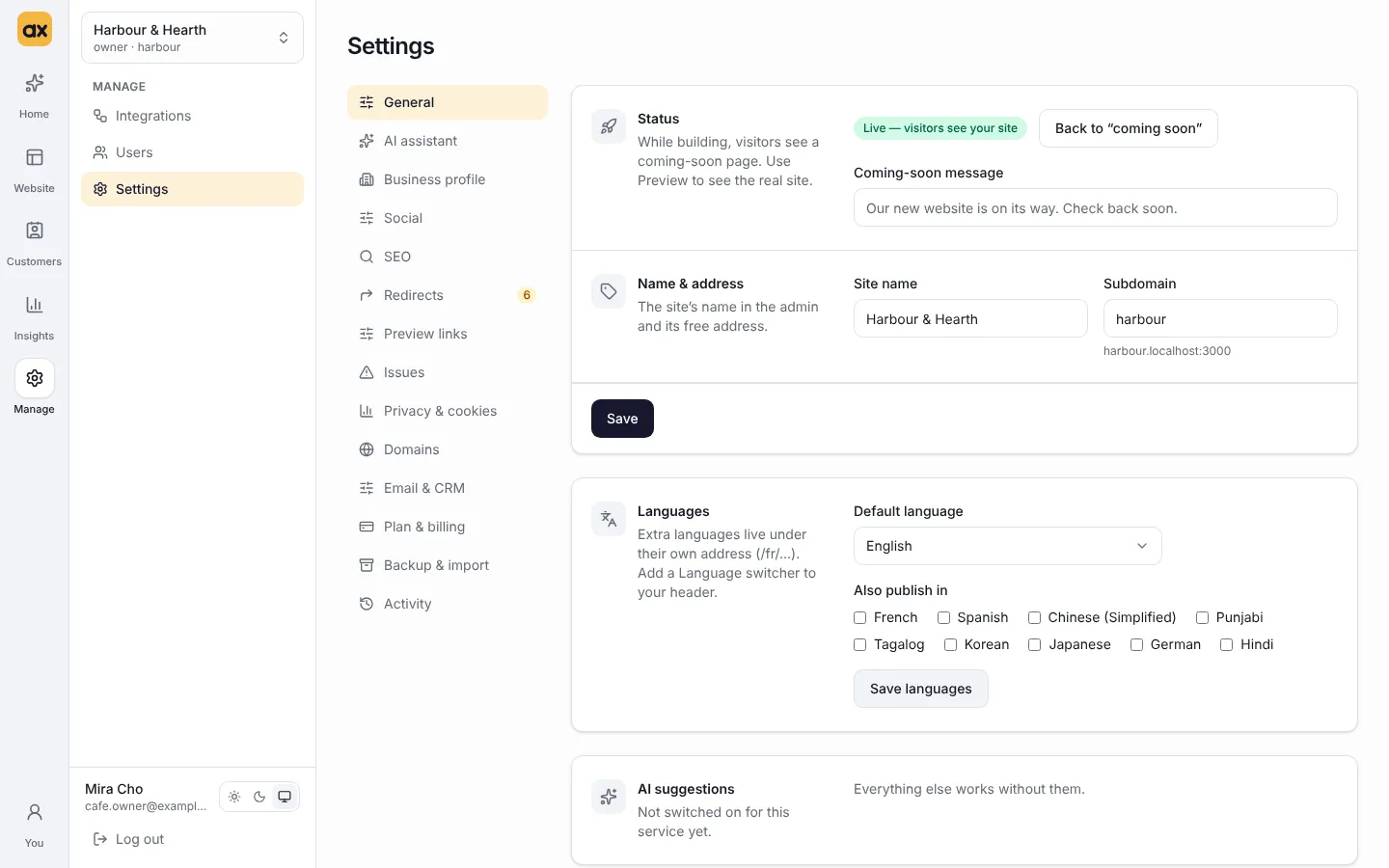
Go to Manage → General, set Status to Live and click Save. Visitors now see your real site, and search engines are allowed to list it.
After launch
Overview swaps the checklist for Your site is live — now help people find it: add your site to your Google Business Profile, tell Google Search about it, ask customers for reviews and put your address everywhere you already are. Start with Get found on Google.
Common questions
Do I need my own domain to go live?
No. Connecting a domain is optional. Your site works on its free AgencyX address, and you can add a domain any time — visitors are moved to it automatically.
What do visitors see before I go live?
A coming-soon page in your site's colours, with your message. Search engines are told not to list the site until it's live.
Can I take the site offline again?
Yes. Set Status back to Coming soon in Manage → General. Your pages are kept; visitors just see the coming-soon page again.
Something out of date or unclear? Search other guides or tell us from your dashboard.