Find your way around the dashboard
A quick tour of the AgencyX admin — the AI assistant home screen, Overview, the two-level menu, the site switcher and the view and edit buttons.
Everything you do on your website starts at cms.agencyx.dev. Opening a website takes you to its home screen, the AI assistant: chat on the right, your chats on the left. Until an owner connects an AI provider it's shown switched off, with a Connect AI provider button. See Build your site by chatting with AI.
The top of the home screen
Your site's name and status sit at the top, with these buttons:
Overview — visitor numbers, the launch checklist and pages waiting for review (more below).
View site — opens your live website in a new tab. You're signed in there too, so you can edit text right on the page.
Preview drafts — shows the site with your unpublished changes, as visitors will see it after you publish.
Edit home page — opens the home page in the editor.
Overview
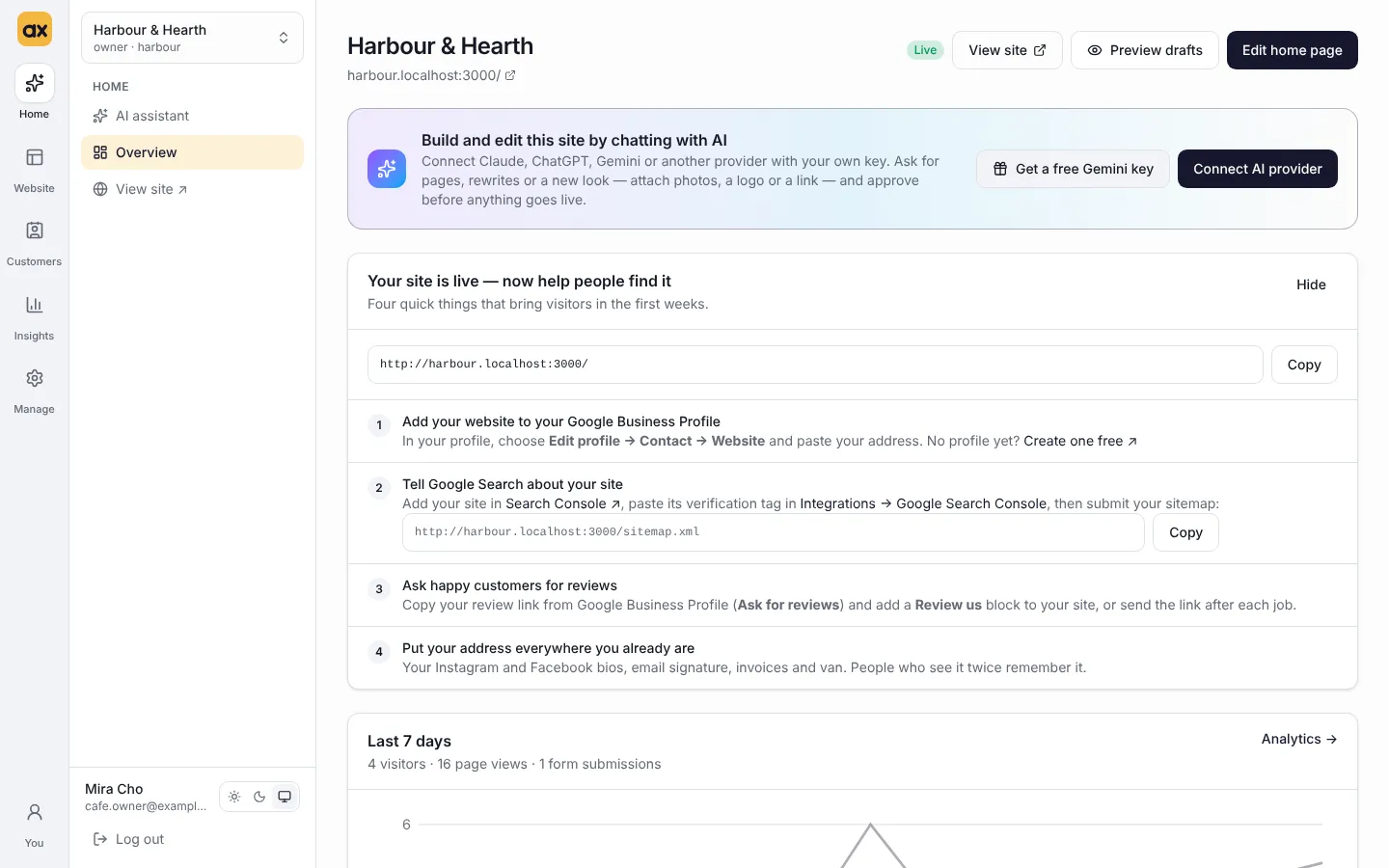
Overview (under Home in the menu) is your site at a glance. A draft site shows the Get your site live checklist; a live site shows tips for getting found and your last 7 days of visits. Below are counts of pages, posts and users, recently edited pages and anything waiting for review.
The menu
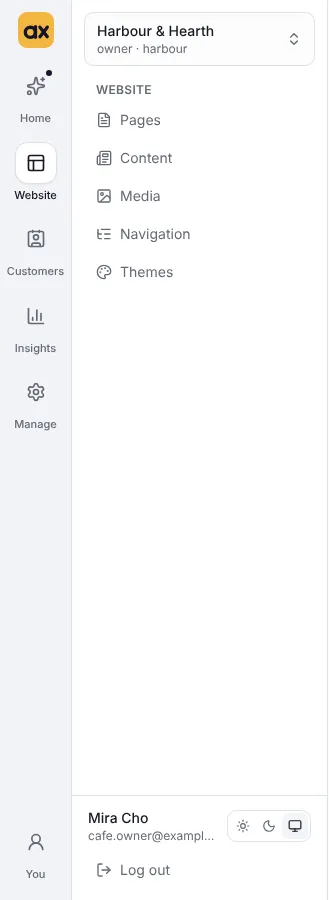
The menu has two levels. The narrow rail on the far left shows the menu's categories as icons; the panel next to it lists the pages in the category you pick. Picking a category only changes the panel — you move to another screen when you pick a page, and the rail then shows the category you're in (a small dot marks it while you look around another one).
| Category | Pages | What they're for |
|---|---|---|
| Home | AI assistant | Your site's home screen: build and edit by chatting. |
| Overview | Visitors, the launch checklist, recent pages and reviews. | |
| View site ↗ | Opens your site in a new tab. | |
| Website | Pages | Every page on your site — create, edit, publish and organise them. |
| Content | Your blog and collections such as team members, events, locations or jobs. | |
| Media | Every photo and file you've uploaded. | |
| Navigation | The menus in your header and footer. | |
| Themes | Your site's look: colours, fonts, header, footer and motion. | |
| Customers | Contacts | Everyone who filled in a form, signed up or you added — with profiles, tags, lists and their history. |
| Pipelines | Boards you drag customers across, from new enquiry to booked. | |
| Inbox | Messages from your forms. | |
| Newsletters, templates and the delivery log of every email you've sent. | ||
| Insights | Analytics | Visitors, page views, top pages, where people came from — and which search engines and AI crawlers read your pages. |
| Manage | Integrations | Send enquiries to Slack, HubSpot and more; add Google Analytics and other tools. |
| Users | Invite people and choose what they can do. | |
| Settings | Status, AI provider, business details, SEO, domains, email sending, plan and backups. |
At the foot of the rail, You holds My sites, AI & MCP (connect an AI app on your computer, like Claude Desktop or Cursor), Account & security and the Help Center (these guides). At the bottom of the panel are your name, the light/dark switch and Log out.
Make it narrower or wider. Drag the right edge of the panel (or click the edge and use the arrow keys). It stops at a minimum width rather than closing, and remembers the width you chose. Double-click the edge to reset it.
Switch between websites
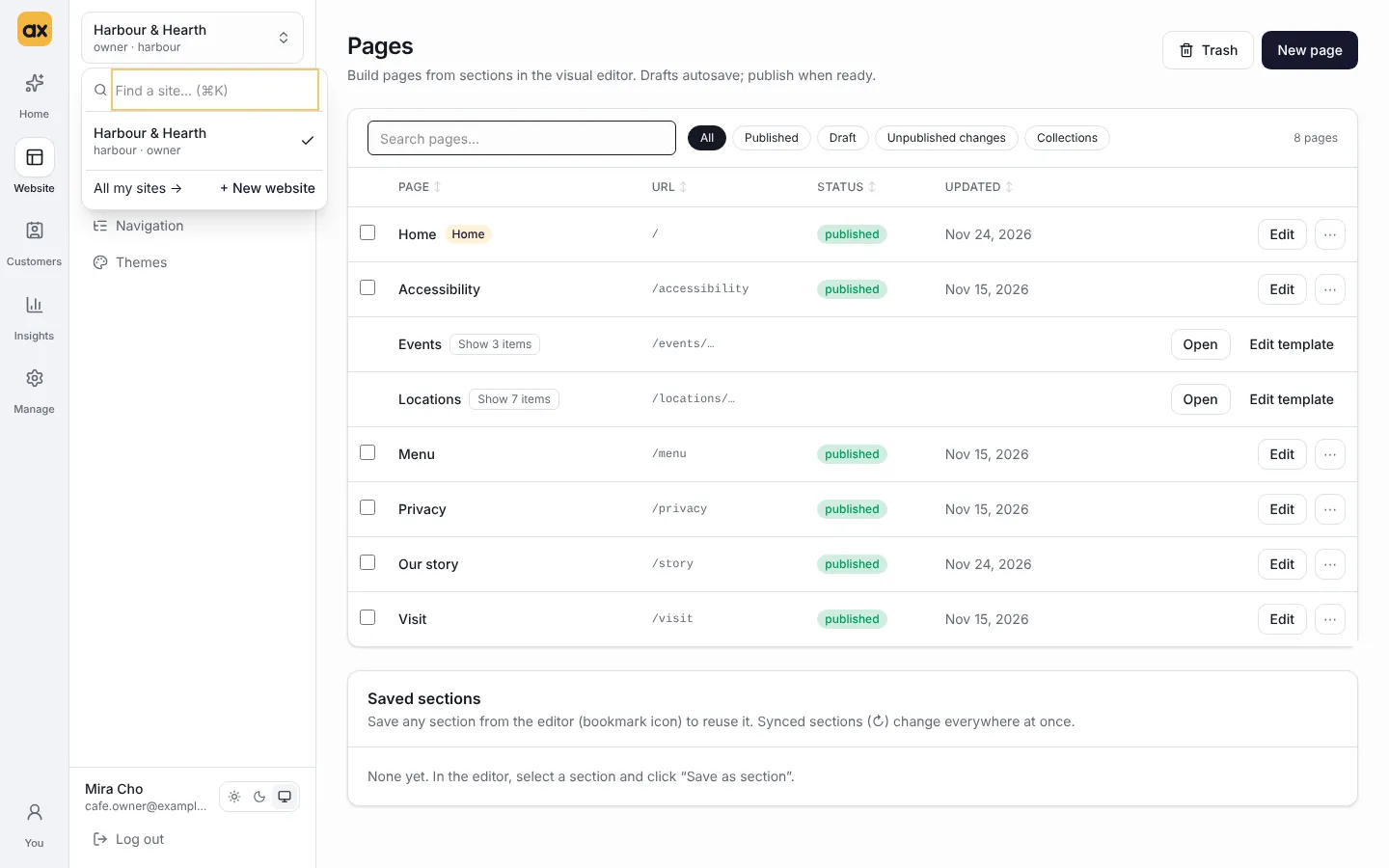
If you work on more than one site, click the site name at the top of the menu panel — or press Ctrl + K (⌘ + K on a Mac) — and pick another. You stay on the same kind of screen (Pages, Media…) when your role on the other site allows it.
On a phone
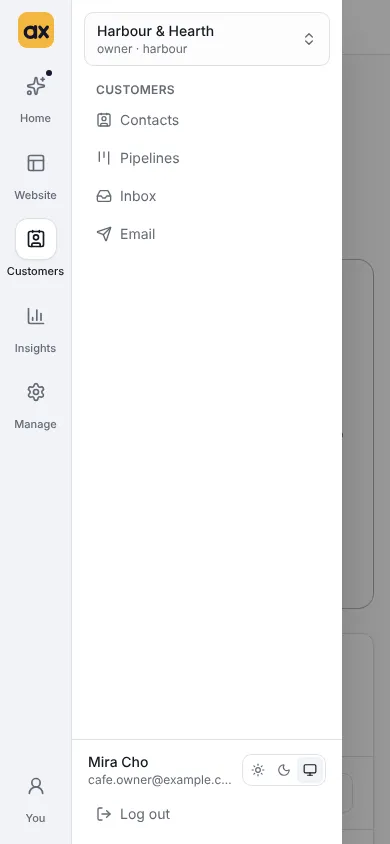
On a small screen the menu folds into a Menu button at the top. Tap it and the rail and the panel slide in together from the left: tap a category, then a page. Tap outside the menu to close it.
Common questions
Why can't I see some items in the menu?
The menu only shows what your role can use. Authors, for example, don't see the Manage category with Settings and Users. Ask an owner of the site if you need more access.
How do I get back to the dashboard?
Open Home in the menu rail, then click Overview for visitor numbers, the checklist and reviews, or AI assistant for your site's home screen.
Can I make the menu narrower or hide it?
Drag the edge of the menu panel to make it narrower or wider (double-click the edge to reset). It can't be closed completely, so the menu is always one click away.
Something out of date or unclear? Search other guides or tell us from your dashboard.