Move your Wix site to AgencyX
A step-by-step plan for moving from Wix — your pages, menu, photos, blog and domain — without losing visitors or Google rankings.
On this page
Moving from Wix is mostly copy and paste. AgencyX gives you the design, so you only bring your words, photos and addresses. Keep your Wix site running until the last step, so visitors never see a gap.
Make a list of your Wix pages
Open your live Wix site and write down every page and its address, for example /about-us or /services. If Wix shows a sitemap at yourdomain.com/sitemap.xml, it lists them all. You'll need this list for redirects in step 6.
Create your AgencyX site
Sign up and pick the template closest to your business. Setup asks for your business name, contact details and opening hours. You can also choose Write it for me with AI and describe your business: the AI writes a first draft of every page for you to edit.
Bring your words across
Open each Wix page and copy its text into the matching AgencyX page. Click any block in the editor to change it. Pages AgencyX doesn't have yet: Pages → New page. Lists like services, menu items, team members or FAQs go in Content, so the same list can show on several pages.
Bring your photos across
In Wix, open Media Manager, select your photos and choose Download. In AgencyX, go to Media and drag them in, or drop them straight onto an image block. AgencyX resizes them for phones and fast loading. Add alt text (a short description) as you go.
Move your blog posts
For each Wix blog post, create a post under Blog → New post and paste the text. Give it the same address as before where you can (the last part of the Wix post address), so fewer redirects are needed.
Add a redirect for every old address
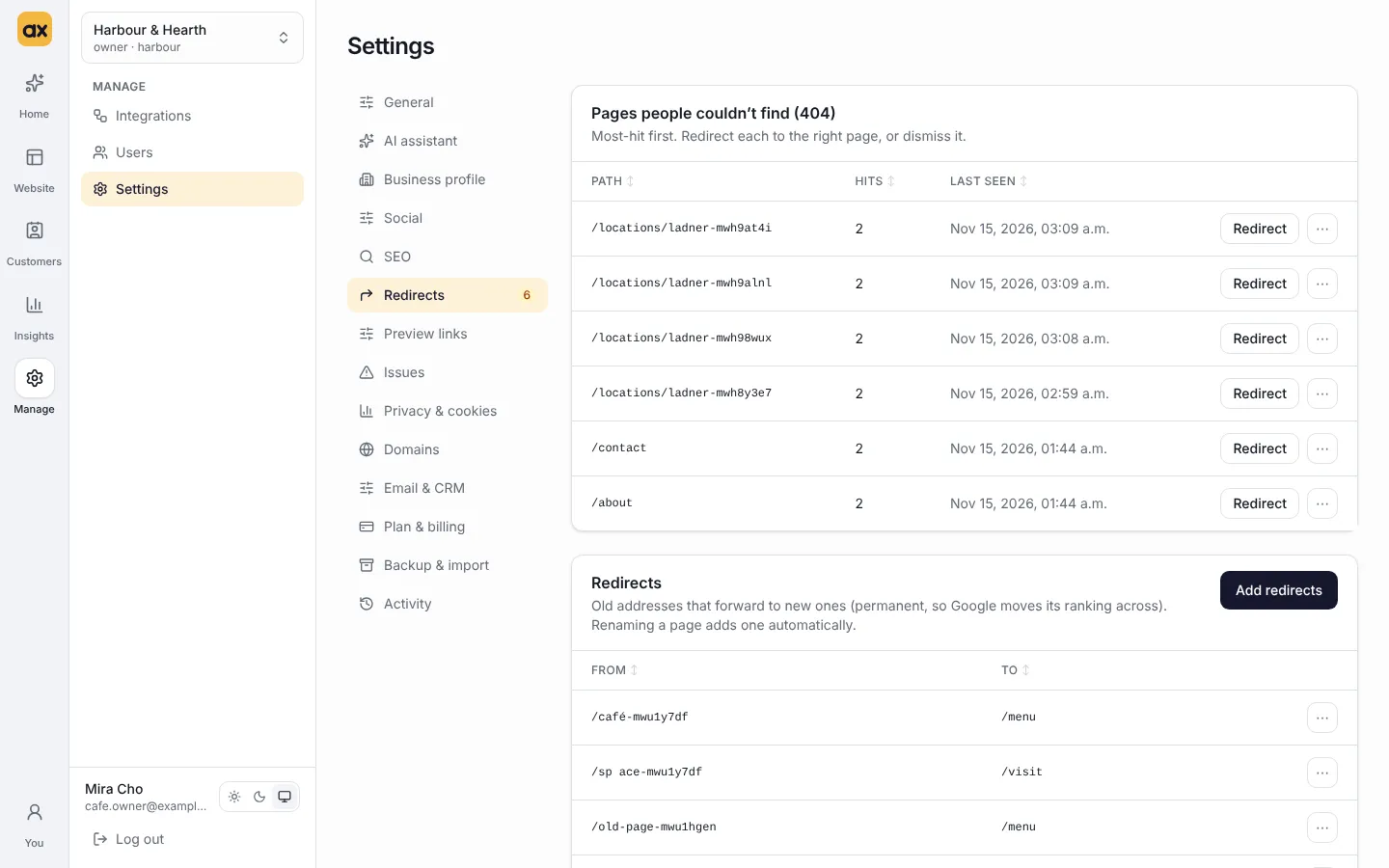
Wix addresses often differ from your new ones (Wix blog posts live under /post/…). In Manage → Redirects, add one line per old address: the old path on the left, the new page on the right. Every page in your list from step 1 should end up either at the same address or with a redirect.
Point your domain at AgencyX
In Manage → Domains, add your domain. AgencyX shows the exact DNS records to add. If your domain is with Wix, add them in Wix under Domains → Manage DNS records. Change nothing else, and your email keeps working. The switch usually takes minutes, sometimes a few hours.
Go live, check, then cancel Wix
Click Go live. Visit your domain and a few old addresses to check the redirects work. Then in Google Search Console, submit your new sitemap (yourdomain.com/sitemap.xml). Once everything looks right, cancel your Wix premium plan. If the domain is registered with Wix, keep its registration renewing, or transfer it first.
Common questions
Can I import my Wix site automatically?
Not yet. Wix doesn't offer a full export of your pages, so you copy the words across and upload your photos. Most small-business sites take an afternoon. Your template does the design work, so you only move the content.
Will I lose my Google rankings?
Not if you add a redirect for every old Wix address (step 6). Visitors and search engines follow it to the new page, and Google moves the page's ranking across.
Do I have to move my domain away from Wix?
No. If you bought the domain through Wix, you can keep it there and just point it at AgencyX. Moving the registration elsewhere is optional.
When should I cancel Wix?
After your domain points at AgencyX and you've checked the live site — usually a few days later. Download anything you still need from Wix first.
Something out of date or unclear? Search other guides or tell us from your dashboard.