Invite your team to work on your website
Invite staff, a designer or your agency by email, choose what each person can do, and change their role or remove them at any time.
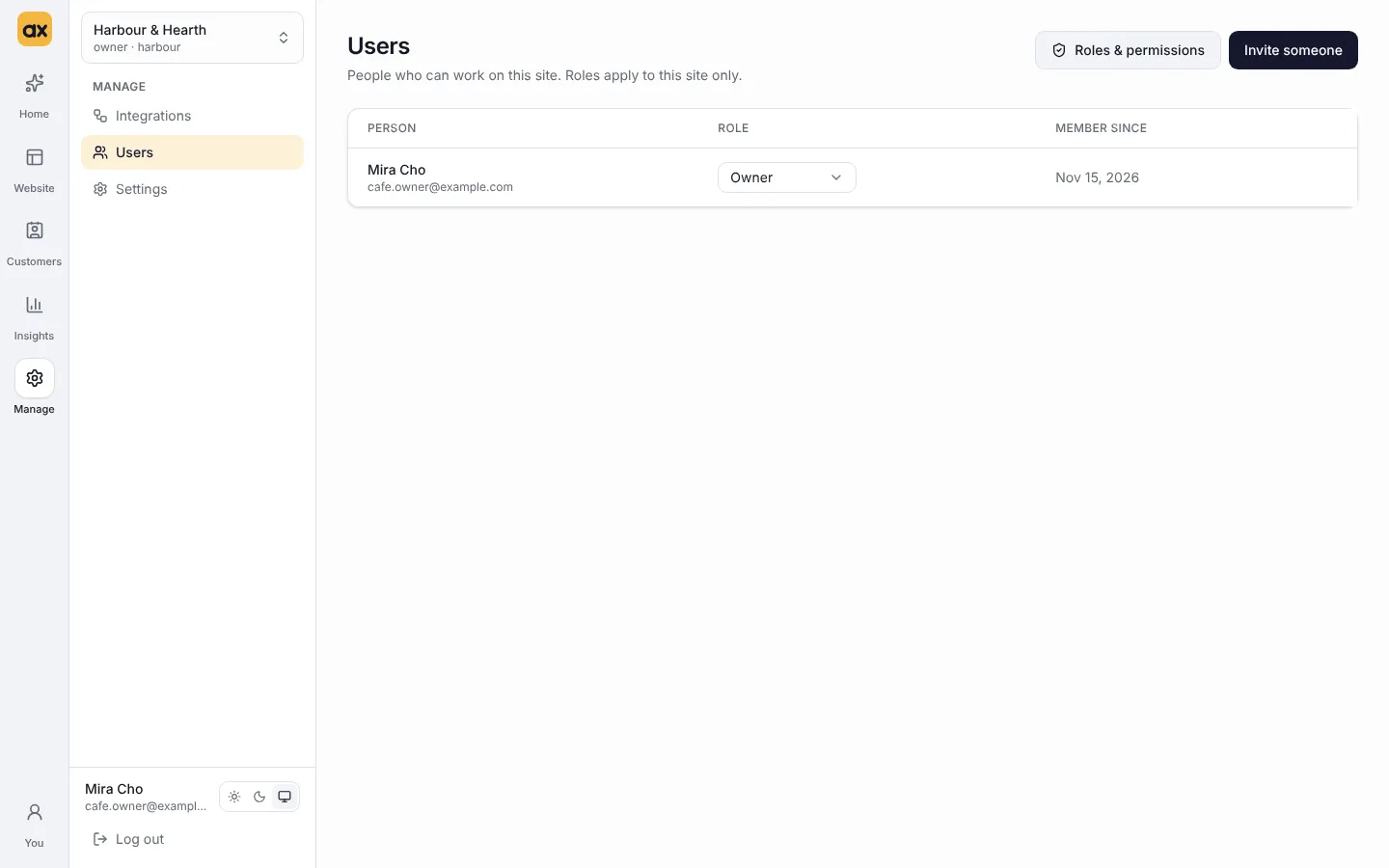
Open Users
In the menu, open Manage and click Users, then Invite someone.
Enter their email and role
Type their email address and choose a role:
| Role | Can |
|---|---|
| Owner | Everything, including settings, billing, domains, users and integrations. |
| Editor | Edit and publish pages, posts, themes, menus and media, and read the Inbox. |
| Author | Write drafts of pages and posts and upload media — an editor or owner publishes them. |
| Viewer | Look around the admin and preview drafts, without changing anything. |
See Roles and permissions for the full list.
Send the invitation
New people get an email invitation to set up their account. People who already have an AgencyX account are added straight away.
Change a role or remove someone
On Users, change the role in the person's row, or use Remove. A site always keeps at least one owner.
Common questions
Does each person need to pay?
Plans are priced per seat. Free includes one person, Pro up to 3 and Max up to 10. Manage → Plan & billing shows your seats.
Will they see my other websites?
No. People only see the sites they've been invited to.
How quickly does removing someone take effect?
Straight away — on their next click, they no longer have access.
Something out of date or unclear? Search other guides or tell us from your dashboard.