Archive a website you no longer need
Take a website offline by archiving it. Type its address to confirm. Archived sites stop showing to visitors and can be brought back by our team.
On this page
Before you archive
- Want a break rather than a goodbye? Set Status to Coming soon in Manage → General instead.
- Download a backup from Manage → Backup & import so you keep a copy.
- Cancel or downgrade the site's plan if you no longer need it.
Archive the site
- Go to Manage → Backup & import and scroll to Danger zone.
- Type the site's address (its subdomain) to confirm.
- Click Archive site.
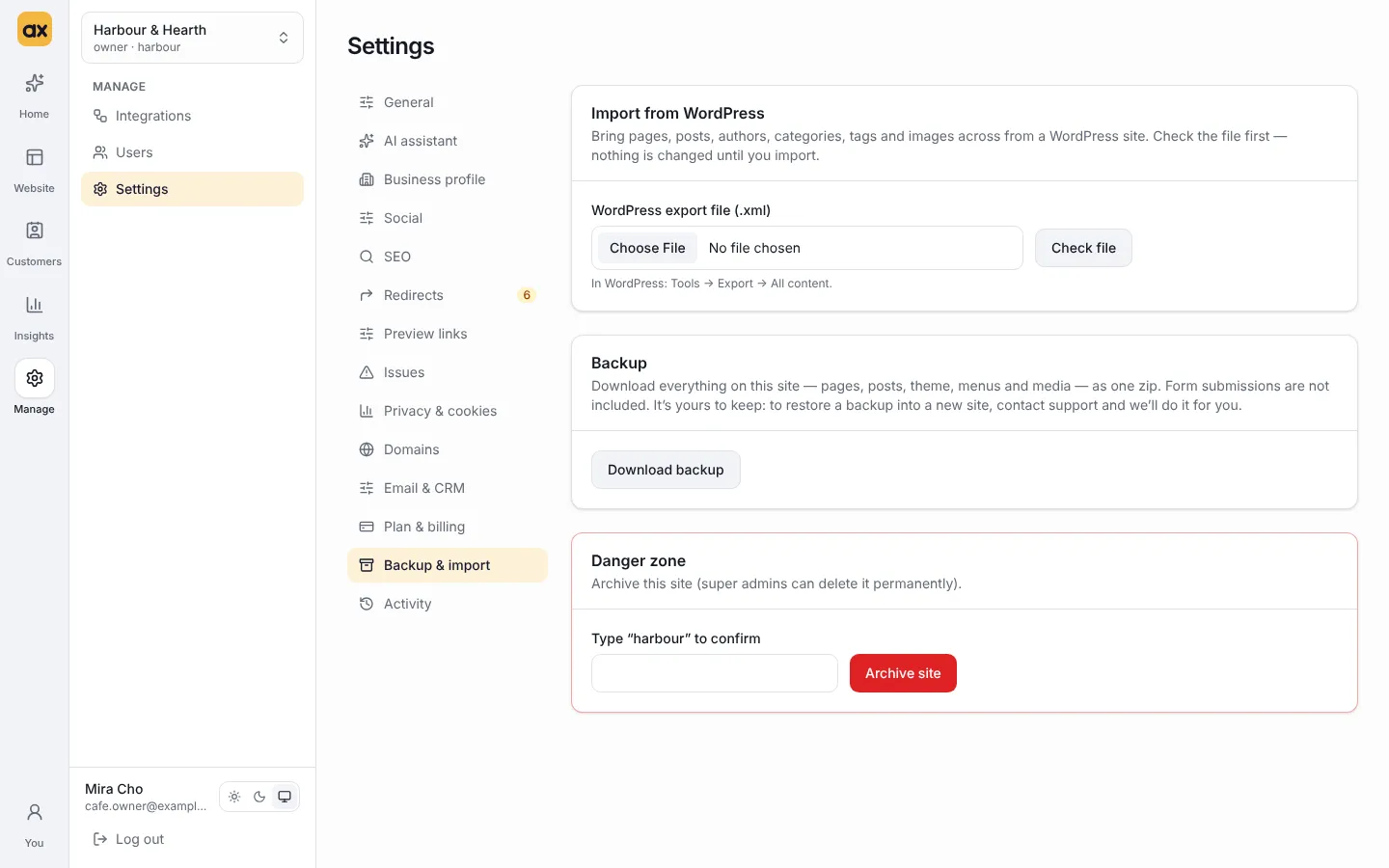
The site stops showing to visitors. Archived sites are kept and can be restored by our team; they're only deleted permanently on request.
Common questions
Can I get an archived site back?
Contact us — archived sites are kept and can be restored. Only the platform team can delete a site permanently.
Should I download a backup first?
Yes. Download a backup from the same screen so you always have a copy.
Something out of date or unclear? Search other guides or tell us from your dashboard.