Turn on two-factor login for your account
Protect your account with a code from an authenticator app, so a stolen password alone can't open your websites. Takes about a minute to set up.
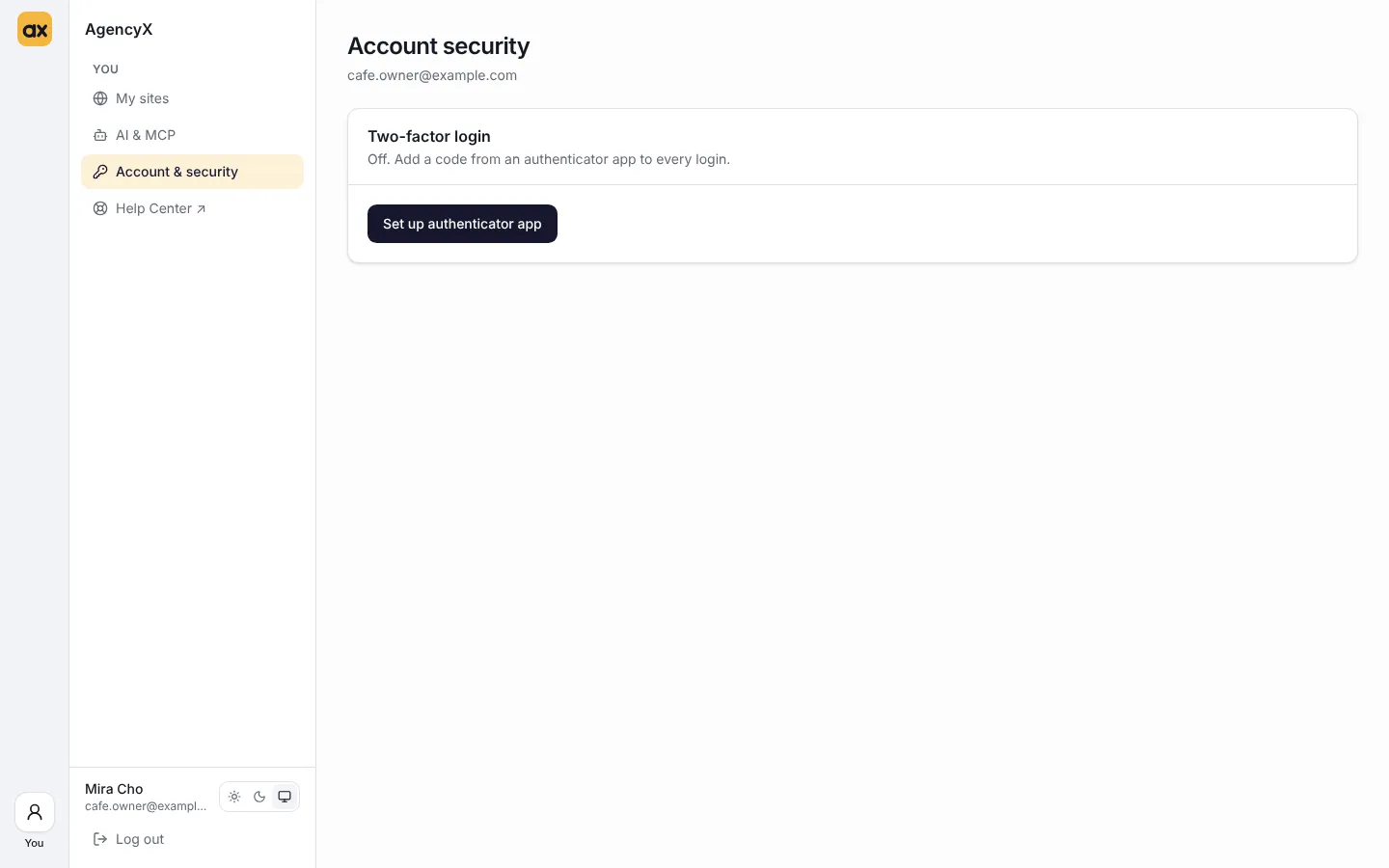
Open Account security
At the bottom of the menu panel, click Security under your name — or open You at the foot of the menu rail and choose Account & security (on a phone, tap Menu first).
Scan the QR code
Click Set up authenticator app. Open your authenticator app, add a new account and scan the QR code.
Enter the code
Type the 6-digit code your app shows and confirm. From now on, logging in asks for a code after your password.
Save your backup codes
You'll see ten backup codes, once. Copy or Download them and keep them somewhere safe (a password manager is ideal). If you ever lose your phone, log in with one of them instead of an app code. Each works once. Running low? Choose Get new backup codes on the same page.
We email you whenever two-factor login is turned on or off, new backup codes are made, or a backup code is used.
Common questions
Which authenticator apps work?
Any app that makes 6-digit codes, such as Google Authenticator, Microsoft Authenticator, 1Password, Authy or your phone's built-in password manager.
What if I lose my phone?
Use one of your backup codes. On the code screen choose "Lost your phone? Use a backup code". Your old authenticator is removed, and you set it up again on your new phone. No backup codes left? Contact us.
Does resetting my password turn off two-factor login?
No. After a password reset, logging in still asks for a code from your app (or a backup code), so a stolen email inbox alone can't open your account.
How will it show in my app?
As AgencyX with your email address. Apps that show logos (such as FreeOTP and 2FAS) also show the AgencyX logo.
Something out of date or unclear? Search other guides or tell us from your dashboard.