Add and manage your contacts
See everyone who filled in a form or signed up on your site, add people yourself, and keep each customer's details, photo, notes and history in one place.
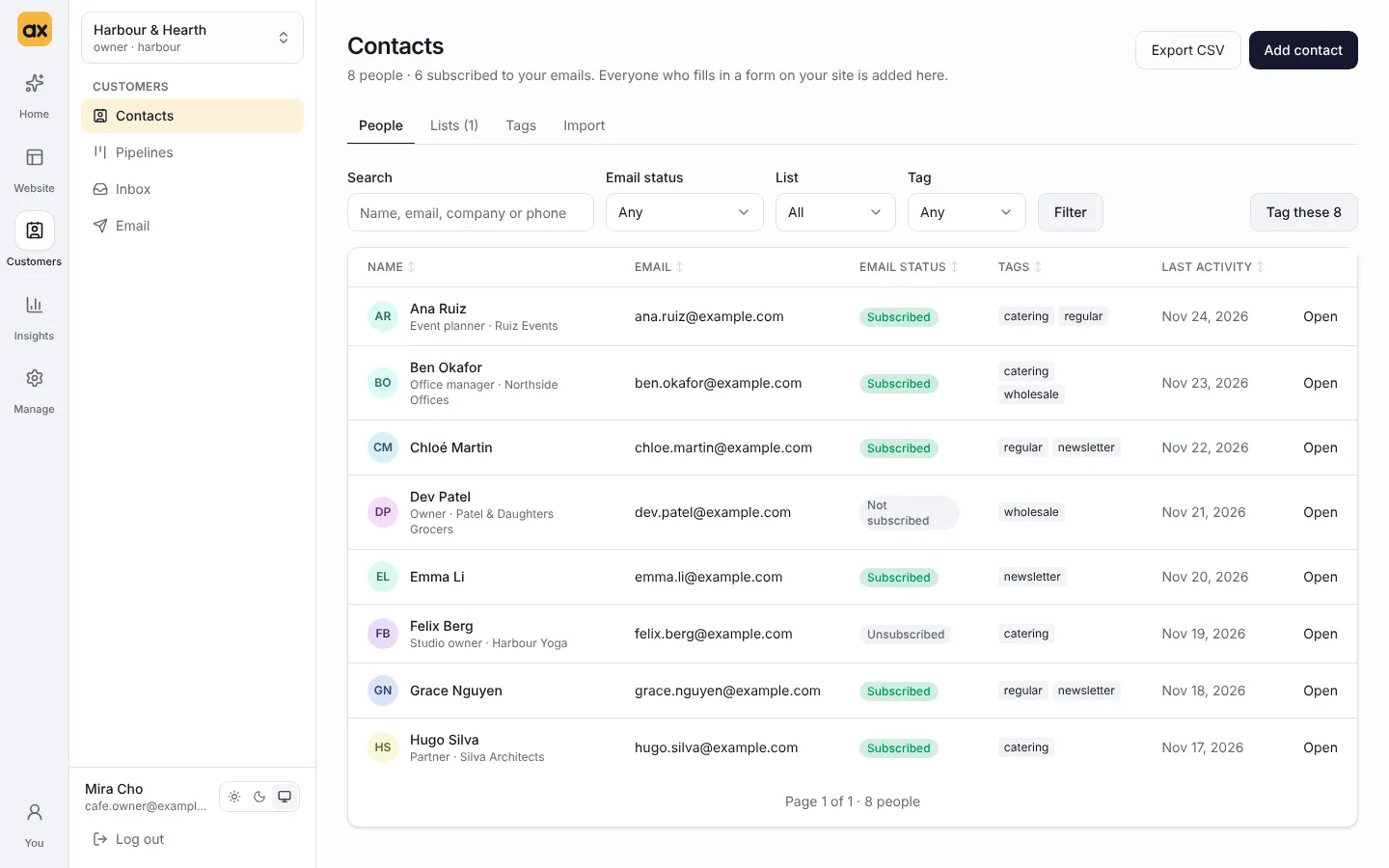
Contacts (under Customers in the menu) is everyone your site knows. People are added by themselves when they send a form or sign up for your newsletter, and you can add anyone else.
Find someone
Search by name, email, company or phone, or filter by Email status, List or Tag. Click a tag on any row to see everyone with it.
Add a contact
Click Add contact, enter their email and anything else you know, and click Add contact. Only tick They agreed to receive marketing emails from us if they did — Canada's anti-spam law (CASL) and similar laws require it.
Their profile
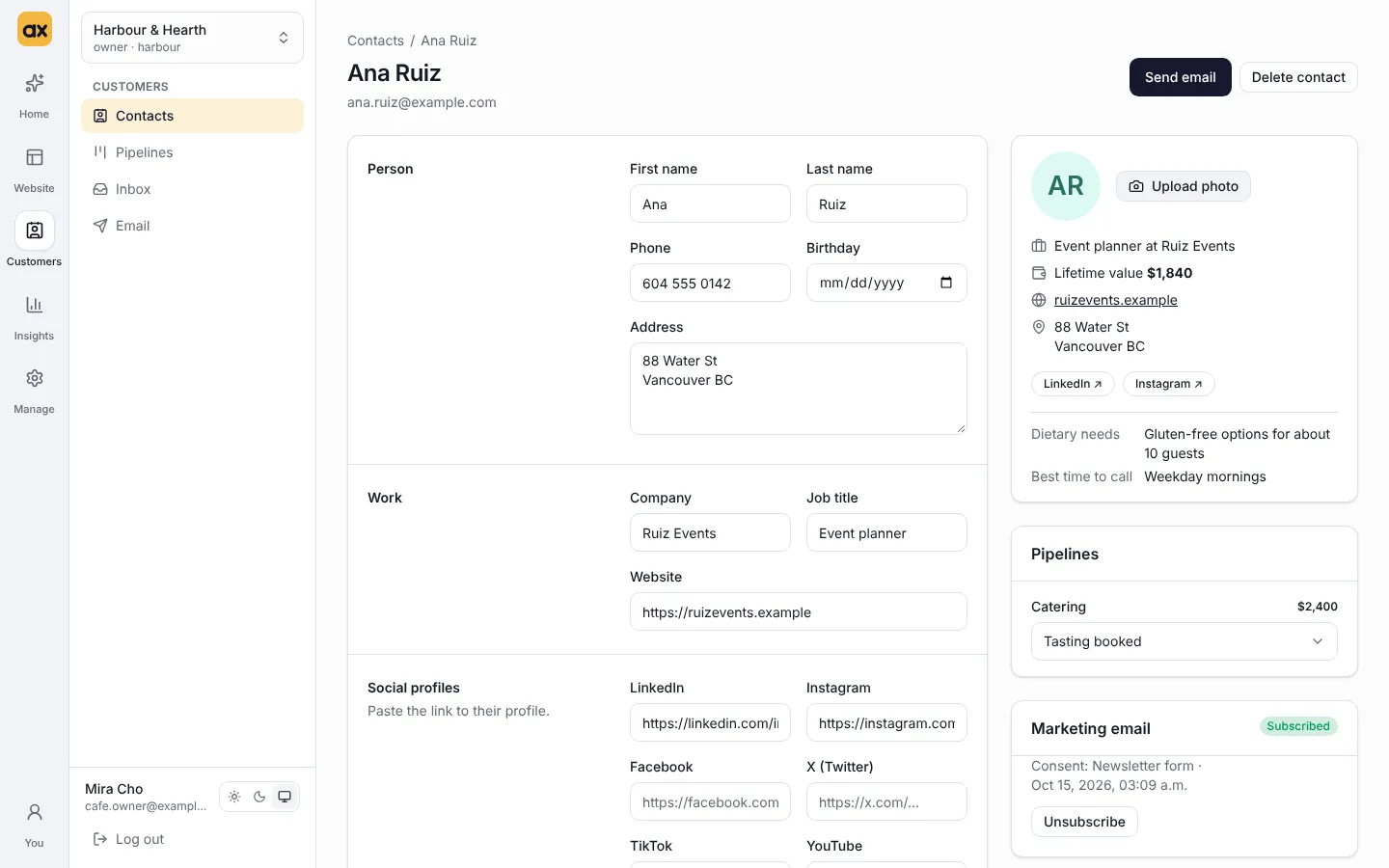
Open someone to see and edit everything about them:
- Photo — click Upload photo (JPG, PNG or WebP).
- Person — name, phone, birthday and address.
- Work — company, job title and website.
- Social profiles — paste links to their LinkedIn, Instagram, Facebook, X, TikTok or YouTube.
- Value — what they've spent with you so far, in their currency.
- Your own fields — click Add a field for anything else.
- Tags & notes — notes are private to your team.
Click Save. The card on the right shows the essentials at a glance, with their social links.
Their history
Activity lists everything that happened, newest first: forms they sent, sign-ups and unsubscribes, newsletters they opened or clicked, emails you sent them, pipeline moves and your notes. Type in Add a note and press Add note to log a call or meeting.
Marketing email
The Marketing email card shows whether they're subscribed and how they agreed. Unsubscribe stops your newsletters to them. To subscribe someone, click Record consent and subscribe and write how they agreed — it's kept as their consent record.
Common questions
Does filling in my contact form subscribe someone to my newsletter?
No. They're added as a contact so you can follow up, but they only get newsletters if they signed up or you record how they agreed.
Can I store something that isn't on the list of fields?
Yes — add your own fields under Your own fields, like a membership number or the best time to call.
How do I delete someone completely, for a privacy request?
Open them and click Delete contact. Their details and history are removed for good.
Something out of date or unclear? Search other guides or tell us from your dashboard.