Organise contacts with tags and lists
Label customers with tags like vip or catering, tag many people at once, rename or remove tags, and group people into lists to email the right people.
Tag one person
Open them, type tags in Tags separated by commas (for example catering, vip), and click Save.
Tag many people at once
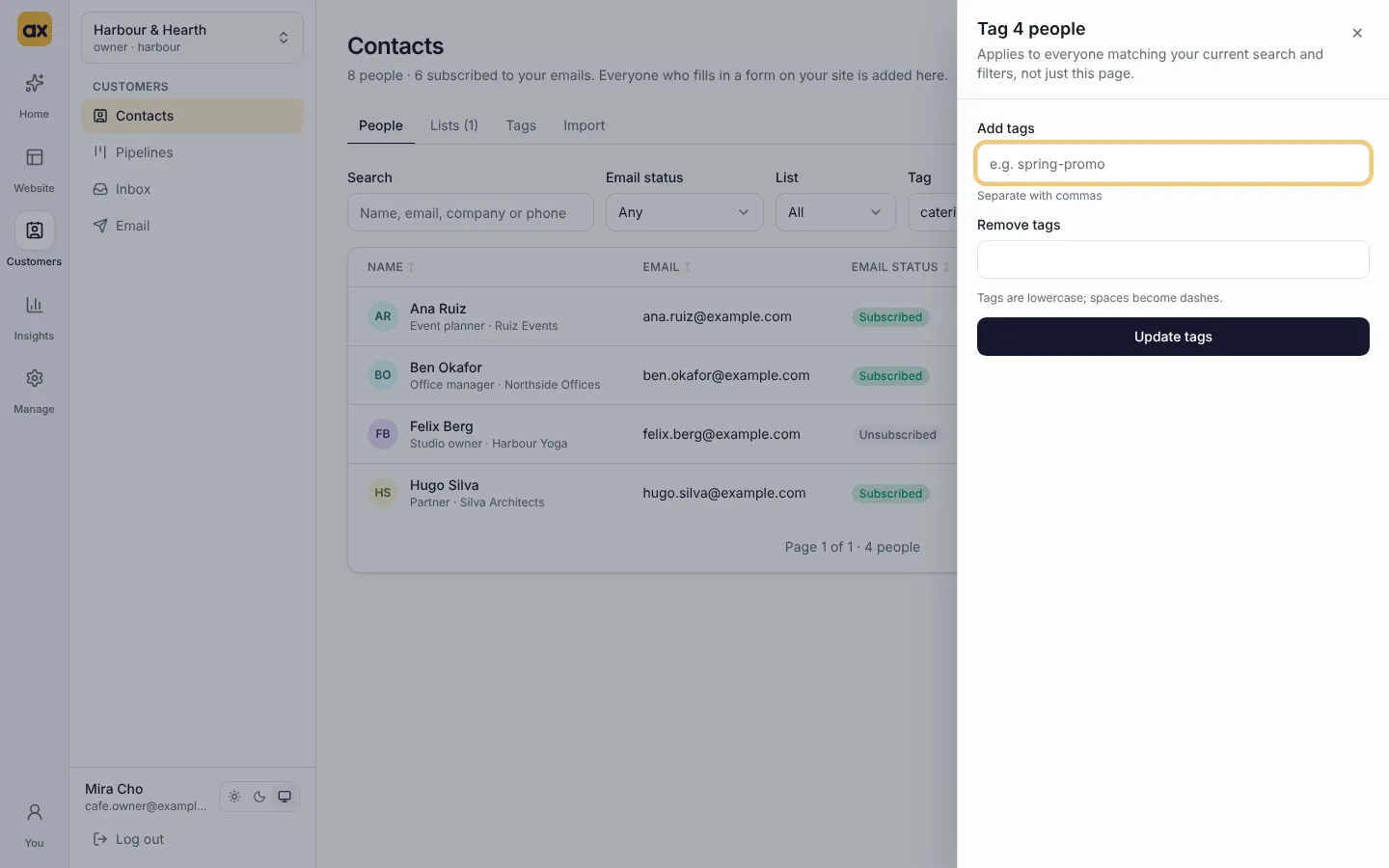
- In Contacts, search or filter to the people you want — for example Tag: catering or a list.
- Click Tag these… (it shows how many people match).
- Type tags to add, and any to remove, then click Update tags.
It applies to everyone matching your filters, not just the page you can see.
You can also give everyone in an import the same tags — see Import and export contacts.
Manage your tags
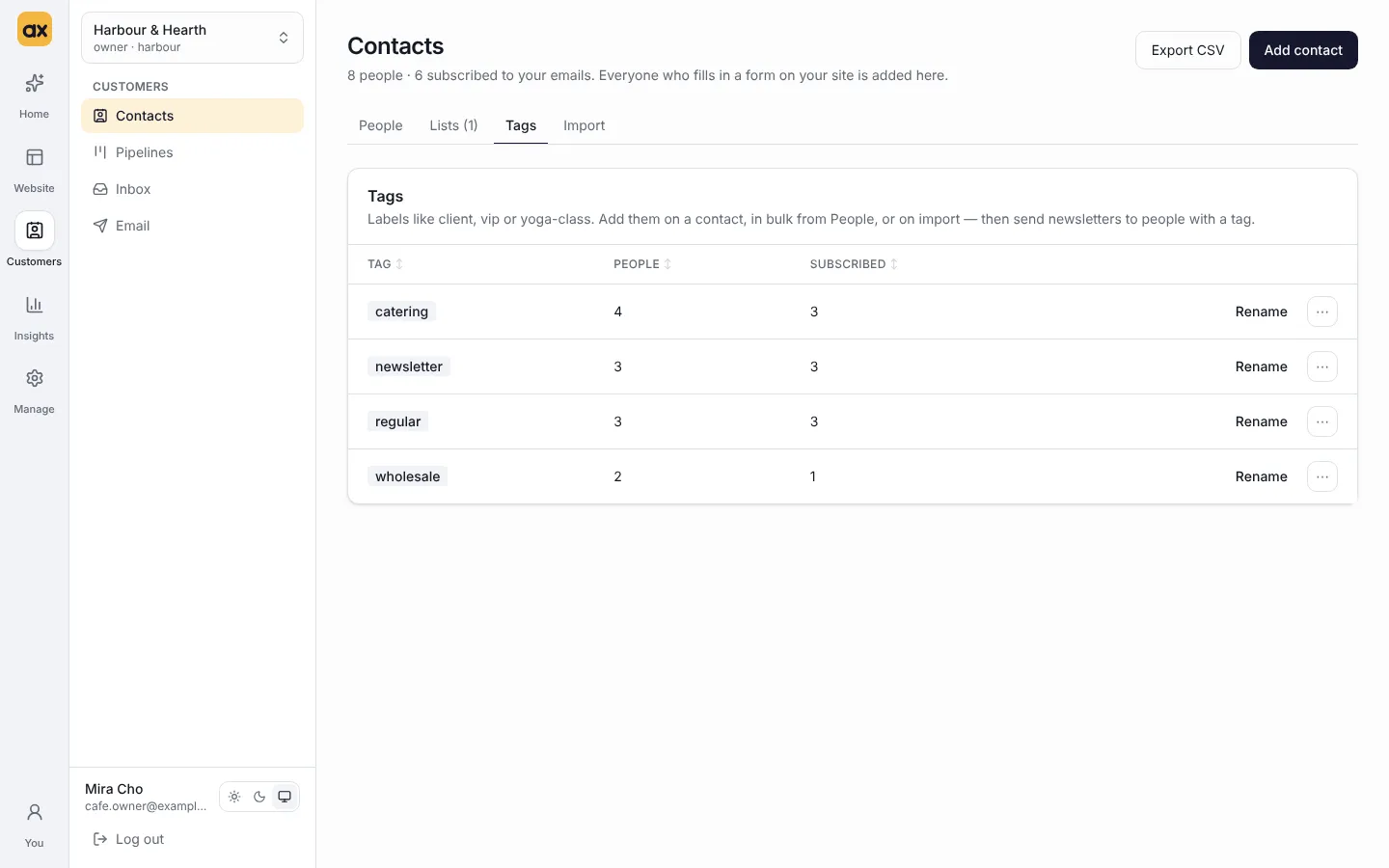
Contacts → Tags lists every tag with how many people have it and how many of them are subscribed. Click a tag to see those people.
- Rename changes it on every contact and newsletter. Renaming to a tag that already exists merges the two.
- ⋯ → Delete tag removes it from everyone. The contacts stay.
Lists
Contacts → Lists shows your lists with their people and subscribers. People who sign up on your site go to Newsletter automatically. Create a list on the right, or add someone to one from their page.
Common questions
What's the difference between a tag and a list?
Both group people. Lists are for named mailing lists like "Newsletter"; tags are quick labels you can combine. A newsletter can go to a list, to people with certain tags, or both.
Are tags case-sensitive?
No. Tags are saved in lowercase and spaces become dashes, so "VIP" and "vip" are the same tag.
Something out of date or unclear? Search other guides or tell us from your dashboard.