Import and export contacts (CSV)
Bring customers over from Mailchimp, Wix, a spreadsheet or your phone with a CSV file, and download your contacts whenever you like.
Import
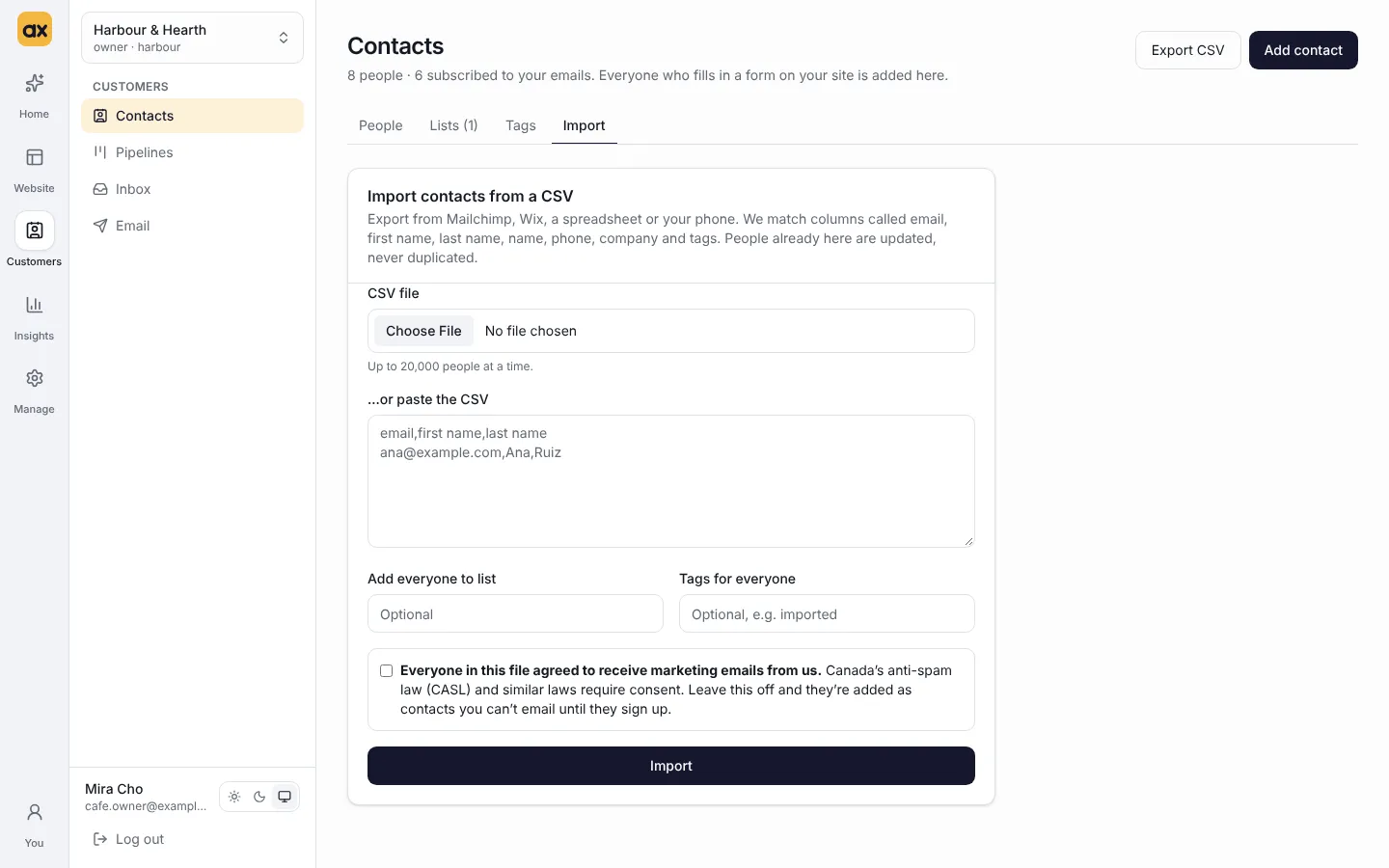
- Go to Contacts → Import.
- Choose your CSV file, or paste the CSV into the box. Up to 20,000 people at a time.
- Optionally add everyone to a list and give everyone tags.
- Tick Everyone in this file agreed to receive marketing emails from us only if they did. Leave it off and they're added as contacts you can't send newsletters to until they sign up.
- Click Import.
You'll see how many were added, updated and skipped (rows without a valid email are skipped).
Export
On Contacts, filter to the people you want (or none for everyone) and click Export CSV. The file opens in Excel, Numbers or Google Sheets.
Common questions
Which columns do I need?
Only email. We also read first name, last name, name, phone, company and tags if they're there.
What happens to people who are already contacts?
Their details are filled in where empty, never overwritten, and they keep their history.
Something out of date or unclear? Search other guides or tell us from your dashboard.