Set up your sending domain for email
Connect a subdomain like news.yourbusiness.com so your emails come from you and land in inboxes — add the DNS records, check them and set sender details.
Before you can send newsletters or emails, connect a domain you own. Only the site's owners can do this.
Add the domain
Go to Manage → Email & CRM. Enter a subdomain such as news.yourbusiness.com and your sender name, then click Set up domain.
Add the DNS records
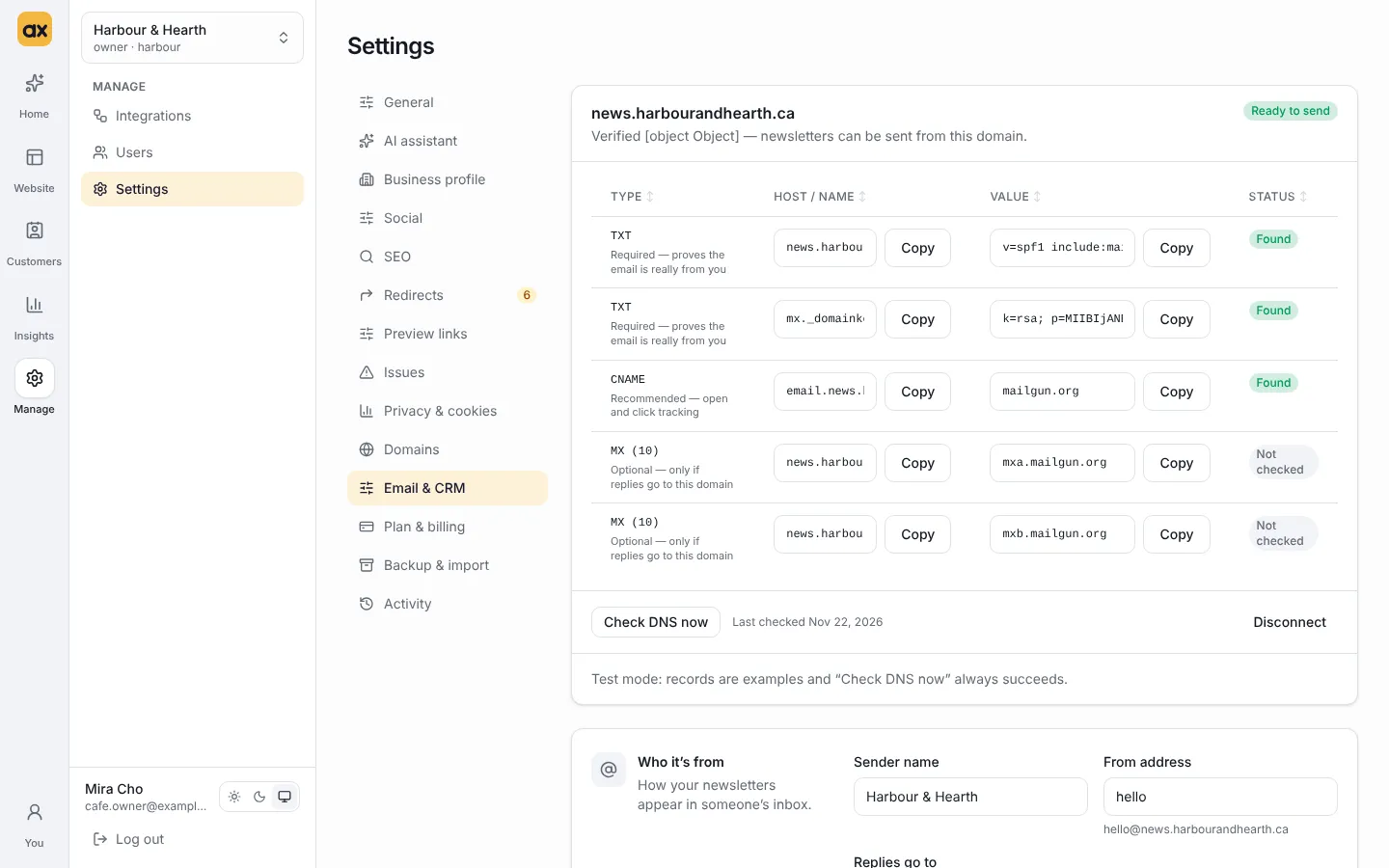
You'll see a few records. Add each one where you manage your domain (GoDaddy, Namecheap, Cloudflare, Squarespace…). Use the Copy buttons for the host and value.
- Required records prove the email is really from you (SPF and DKIM).
- Recommended turns on open and click tracking.
- Optional MX records are only needed if replies should go to that subdomain.
Check
Click Check DNS now. Each record shows Found once it's working, and the domain shows Ready to send.
Sender details
Fill in Who it's from (sender name, the part before @, and where replies go) and your postal address. Anti-spam laws require a real mailing address in every newsletter; it's shown in the footer.
Common questions
Why a subdomain and not my main domain?
It keeps your newsletters separate from your everyday email, so a problem with one never affects the other.
How long does it take?
Usually minutes once the records are added, but DNS changes can take up to a few hours.
Do I need an email account on that subdomain?
No. Replies go to the reply-to address you choose, like your normal inbox.
Something out of date or unclear? Search other guides or tell us from your dashboard.