Change a page's address without breaking links
Rename a page's web address or move it under another page. Old links keep working with an automatic redirect, and your menus and links update themselves.
Open the page's settings
Go to Pages and click the page's name.
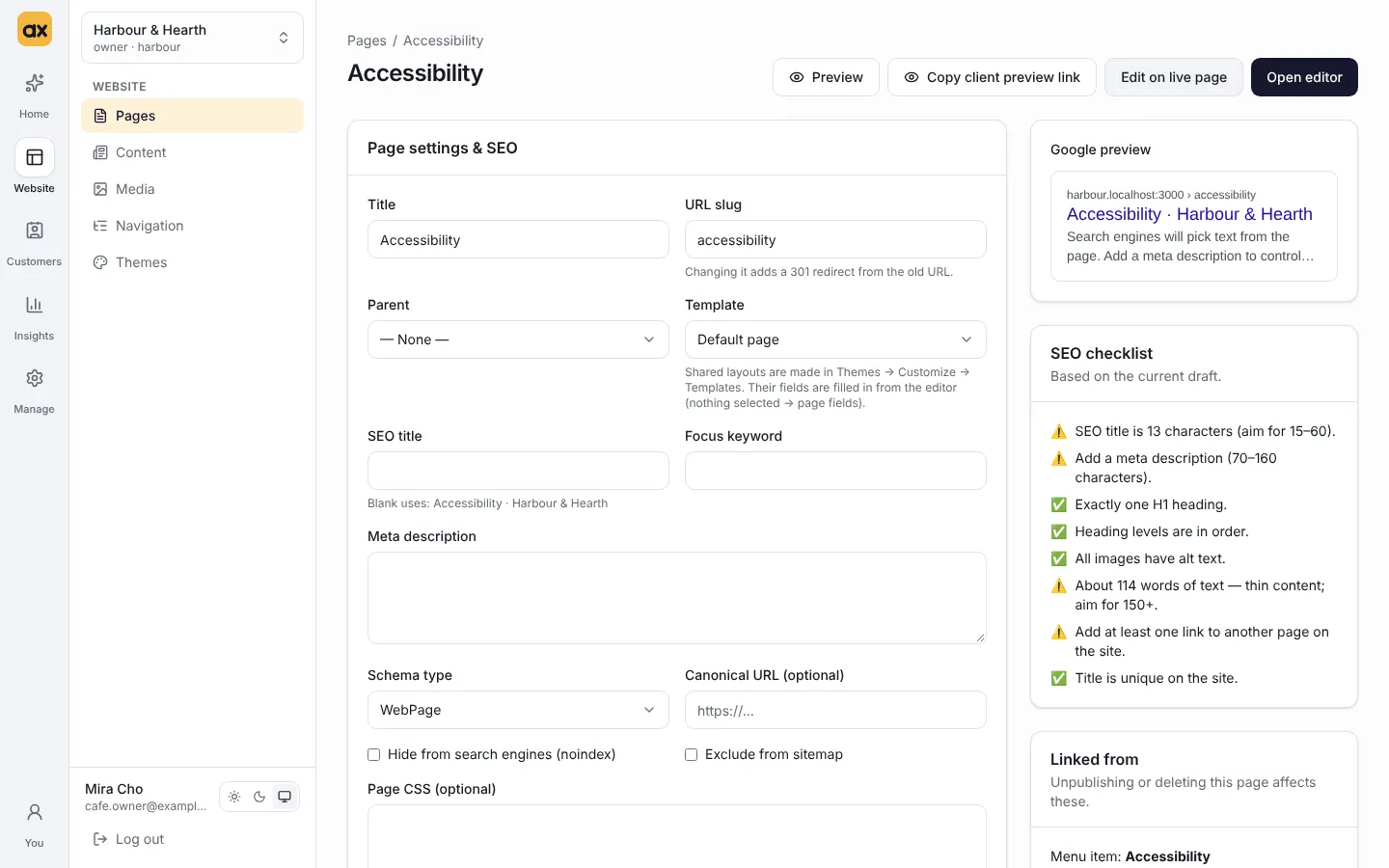
Change the address or parent
- URL slug — the last part of the address, like
cateringin/services/catering. - Parent — the page this one sits under.
Click Save settings. The field reminds you: changing it adds a 301 redirect from the old URL.
What happens automatically
- Visitors and search engines using the old address are sent to the new one.
- Pages under this one move too, with their own redirects.
- Redirect chains are collapsed, so there's never more than one hop.
- Menus and links inside your text follow the page, because they link to the page itself, not its address.
You can see every redirect in Manage → Redirects.
Common questions
Will I lose my Google ranking?
A permanent (301) redirect tells Google the page has moved, so it moves the ranking to the new address.
What about pages under the one I moved?
They move with it, and each gets its own redirect.
Something out of date or unclear? Search other guides or tell us from your dashboard.